
How to Use a Nintendo Switch Controller on Your PC in 2024
Introduction
Nintendo Switch controllers are renowned for their ergonomic design and versatility. Gamers often seek to use their trusty Nintendo Switch controllers beyond the console, aiming for the enhanced comfort and familiar layout during PC gaming sessions. This guide will provide clear steps on connecting and configuring a Switch controller on your PC, ensuring an optimal gaming experience. Whether you prefer action-packed shooters or relaxing puzzle games, the Nintendo Switch controller can offer you versatile gameplay options.
Why Use a Switch Controller on PC?
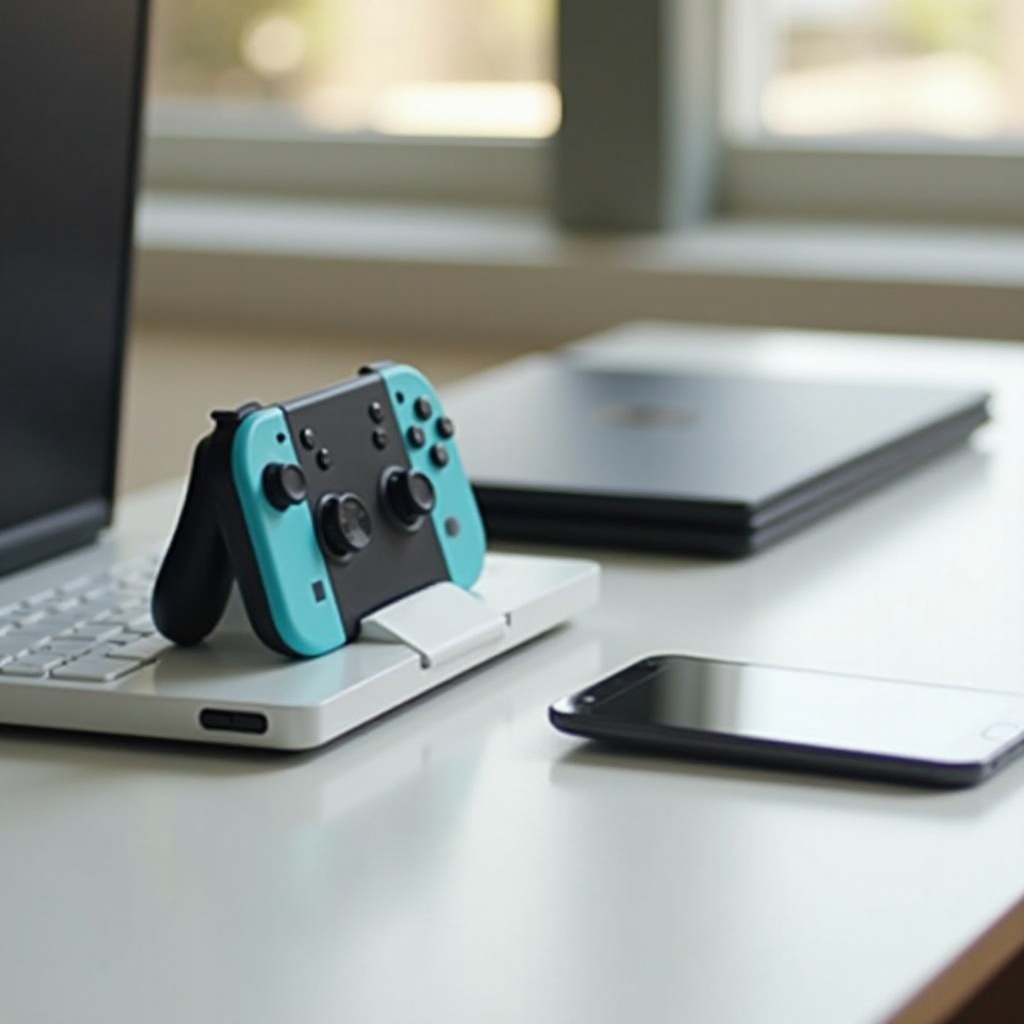
The Switch controller stands out for its ergonomic design, setting a benchmark for comfort during extended gaming sessions. Many gamers appreciate this controller for its familiar feel and intuitive layout, providing a seamless transition from console to computer gaming. Additionally, the Switch controller’s compatibility with diverse game types makes it a standout choice.
Particularly for action-adventure and platformer genres, Switch controllers provide enhanced performance, delivering precision and agile control. Their button layout reproduces the console experience, making it a preferred choice for those accustomed to the Switch. Leveraging a Switch controller allows gamers to enjoy familiar comfort coupled with broad compatibility, reinforcing its selection as a gaming tool of preference.
Understanding Compatibility
Before connecting a Switch controller to your PC, confirming compatibility is crucial. Both the Nintendo Switch Pro Controller and the individual Joy-Cons are compatible with PCs, though setup processes may slightly vary. Ensure that your PC is running a compatible operating system; most PCs on Windows 10 or newer, and even macOS and Linux, offer support for these controllers.
Notably, setting up will differ slightly based on your system’s operating framework, so recognizing these nuances ensures an effective setup. With compatibility assured, connecting your preferred gaming apparatus offers an extensive and adaptable play experience.
Connecting Your Switch Controller
Connecting your Switch controller to a PC can be accomplished via two primary methods: wired and wireless connections.
- Wired Connection Setup:
- Utilize a USB-C cable to physically connect the Switch controller to your PC.
- Your PC should automatically recognize and configure the device.
-
Should any issues arise, manually navigate to your system’s control panel to search for and install new hardware.
-
Wireless Bluetooth Connection Setup:
- Confirm your PC is equipped with Bluetooth functionality.
- Place the Pro Controller into pairing mode by holding the Sync button.
- Navigate to your PC’s Bluetooth settings and select ‘Add a Bluetooth Device’.
- Choose your controller from the list of available devices and wait for the connection to establish.
Whether opting for the reliability of a wired connection or the freedom of wireless usage, both methods ensure a seamless transition for your gaming needs.
Required Tools and Software
To enhance your gaming experience with a Switch controller on PC, certain tools and software become essential.
- Drivers: Your operating system generally downloads necessary drivers automatically once a connection is asserted. However, confirming that all drivers remain updated can ward off potential connection issues.
- Software: Platforms like Steam provide native support for Switch controllers, facilitating easy configuration and mapping. Keeping software updated remains crucial, ensuring real-time compatibility and support.
With these tools in place, your Switch controller is optimized to bring out its best potential, furnishing enriched gaming environments.
Configuring Controller Settings for Optimal Performance
Configuring your Switch controller is critical to match the gaming conditions to your preference, amplifying the overall experience.
- Button Mapping: Certain titles may necessitate custom button mappings. Utilize platforms like Steam’s Big Picture Mode to define button setups according to individual needs.
- Sensitivity Settings: Calibrate the stick sensitivity to match your play style, varying from dynamic movements for shooters to slower paces for puzzle games.
- Customization: Advanced software options can facilitate creating profiles for different game genres, enabling swift transitions between settings.
Proper configuration ensures not just functionality but also personalizes your controller for optimized play, reflecting precise control preferences.
Troubleshooting Common Issues
While setting up or using a Switch controller with a PC usually presents minimal issues, troubleshooting may be necessary at times:
- Connectivity Problems: If encountering connection failure, ensure your controller is actively pairing. Restart your PC and controller if issues persist.
- Recognition Issues: If a controller is not recognized, disconnect and reconnect your device or try an alternate USB port.
- Lag and Response Issues: Lagging may require checking background applications consuming bandwidth. Firmware updates for your controller often resolve response issues.
By staying proactive with troubleshooting, you make way for smooth gaming experiences free from interruptions.
Conclusion
Incorporating a Nintendo Switch controller into your PC gaming setup elevates the gaming experience considerably. Following this guide facilitates a smooth connection process while ensuring your controller is finely tuned for any gaming scenario. Attention to setup details and controller fine-tuning enables superior comfort and control, greatly enhancing your gaming sessions with reliable hardware that transcends traditional constraints.
Frequently Asked Questions
Can all Switch controllers connect to a PC?
No, not all Switch controllers are compatible. The official Pro Controller and Joy-Cons can connect, but third-party controllers may have limited support.
What games are best played with a Switch controller on PC?
Switch controllers are excellent for platformers, action-adventure, and specific role-playing games, where precise movement and comfortable controls are essential.
How do I update my Switch controller firmware on PC?
To update, connect the controller to a Switch console and access the controller settings in the console’s system settings for updates.