
Troubleshooting ‘No Signal’ on Second Monitor: A Comprehensive Guide
Introduction
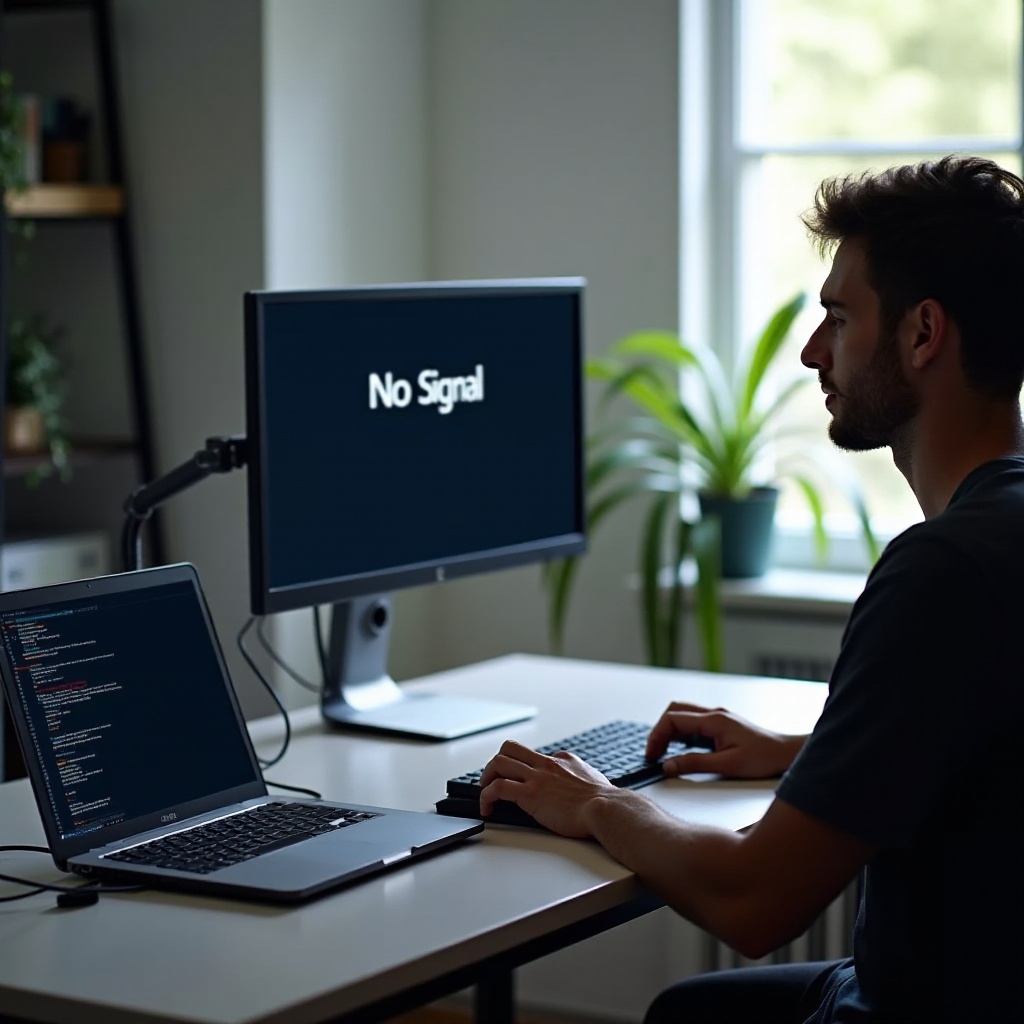
Experiencing a ‘no signal’ message on your second monitor can significantly disrupt workflow, especially if you depend on dual displays for enhanced productivity. Such issues could stem from a variety of sources, like connection problems, incorrect settings, or software and hardware conflicts. This guide will walk you through the comprehensive steps to diagnose and resolve these common issues.

Understanding the ‘No Signal’ Issue
Understanding the underlying causes of a ‘no signal’ warning is crucial to effectively addressing it. Typically, this message appears when your monitor cannot detect a signal from your computer. Loose cables or incorrect input source settings on your monitor can trigger this issue. Resolving these simple problems often leads to a rapid fix.
Initial Checks and Basic Solutions
Before proceeding to more detailed troubleshooting steps, perform basic checks:
- Ensuring Proper Cable Connections: Secure all cables, verifying that power and video cables are firmly connected to both your monitor and your computer.
- Checking Monitor Power Status: Confirm that your monitor is powered on, with the power indicator light showing.
- Verifying Input Source Settings: Use your monitor’s menu to ensure the correct input source is selected. For instance, if connected via HDMI, make sure HDMI is the chosen input.
These steps form the foundation of troubleshooting, addressing the core basics that frequently resolve connection problems. Should these checks not solve the issue, system settings adjustments may be necessary.
Adjusting System and Monitor Settings
Sometimes, the problem persists even after basic checks, necessitating adjustments in the system and monitor settings.
- Configuring Display Settings on Windows/Mac: Ensure your operating system identifies the second monitor. On Windows, access ‘Display Settings’ to manage and extend the screen. On macOS, go to ‘System Preferences’ > ‘Displays’ to configure and arrange your monitors.
- Extending or Duplicating Displays: Select whether you prefer to extend or duplicate your display. Correctly setting this preference often resolves many functional issues, getting your dual-monitor setup back on track.
With systems properly aligned with the hardware, any remaining issues might be hardware-specific, prompting a deeper technical dive.
Hardware Troubleshooting Techniques
Should the problem persist, evaluate the hardware more closely:
- Testing with Different Cables: Swap in alternate cables to eliminate the possibility of a defective connection. Often, a faulty cable can cause such issues.
- Trying Different Ports: Connect your monitor to various ports on your computer to rule out port-specific problems, which are sometimes deactivated or malfunctioning.
By eliminating hardware defects, attention turns to driver and software-related considerations, which play a critical role in signal transfer.
Driver and Software Considerations
The operating environment on your computer can heavily influence connectivity issues:
- Updating Graphics Drivers: Ensure that your graphics drivers are up-to-date. Use your system’s update utility or visit the graphics card manufacturer’s website to download the latest drivers.
- Ensuring Correct Display Adapter Usage: Validate that your system is using the correct display adapter for your configuration. Misidentified adapters can impede the display signals.
Current software and drivers bolster smooth communication between your system and monitor, eliminating any barriers to a fully operational setup.
Advanced Troubleshooting Methods
For persistent issues, more advanced strategies might be required:
- Testing with Another Monitor or Computer: Swap out monitors or connect your current monitor to a different computer. This technique helps determine whether the fault lies with the monitor or the computer.
- Exploring BIOS/UEFI Settings: Occasionally, BIOS adjustments might be needed for your system to recognize multiple displays. Access BIOS/UEFI upon startup and review the display-related settings.
These advanced techniques often address residual problems, facilitating a successful dual-monitor experience.
Conclusion
Addressing a ‘no signal’ issue on your second monitor requires a systematic approach, from elementary connectivity checks to more in-depth hardware and software evaluations. Following these steps can restore your dual-monitor setup, boosting both efficiency and productivity in your workspace.
Frequently Asked Questions
Why does my monitor say ‘no signal’ when it’s connected?
This usually happens due to loose cables, incorrect input source settings, or outdated drivers. Checking connections and settings can often identify the issue.
Can a faulty cable cause ‘no signal’ on my second monitor?
Yes, damaged or faulty cables are a common cause of connection issues. Testing with a new or different cable can easily resolve this.
What should I do if my second monitor still won’t display after following troubleshooting steps?
Consider seeking professional help to diagnose hardware problems that might need repair or replacement.