
How to Download Amazon Kindle Books: A Comprehensive Guide
Introduction
Downloading Amazon Kindle books has become an essential skill for every digital reading enthusiast. With the Kindle’s vast library of books at your fingertips, knowing how to effectively download these books ensures that you can enjoy your reading experience whenever and wherever you please. This guide will walk you through the process of downloading Kindle books across various devices, making your reading journey smooth and enjoyable.
Understanding Amazon Kindle Books
Before jumping into the downloading process, it’s important to understand what Kindle books are and the various formats they utilize.
What Are Kindle Books?
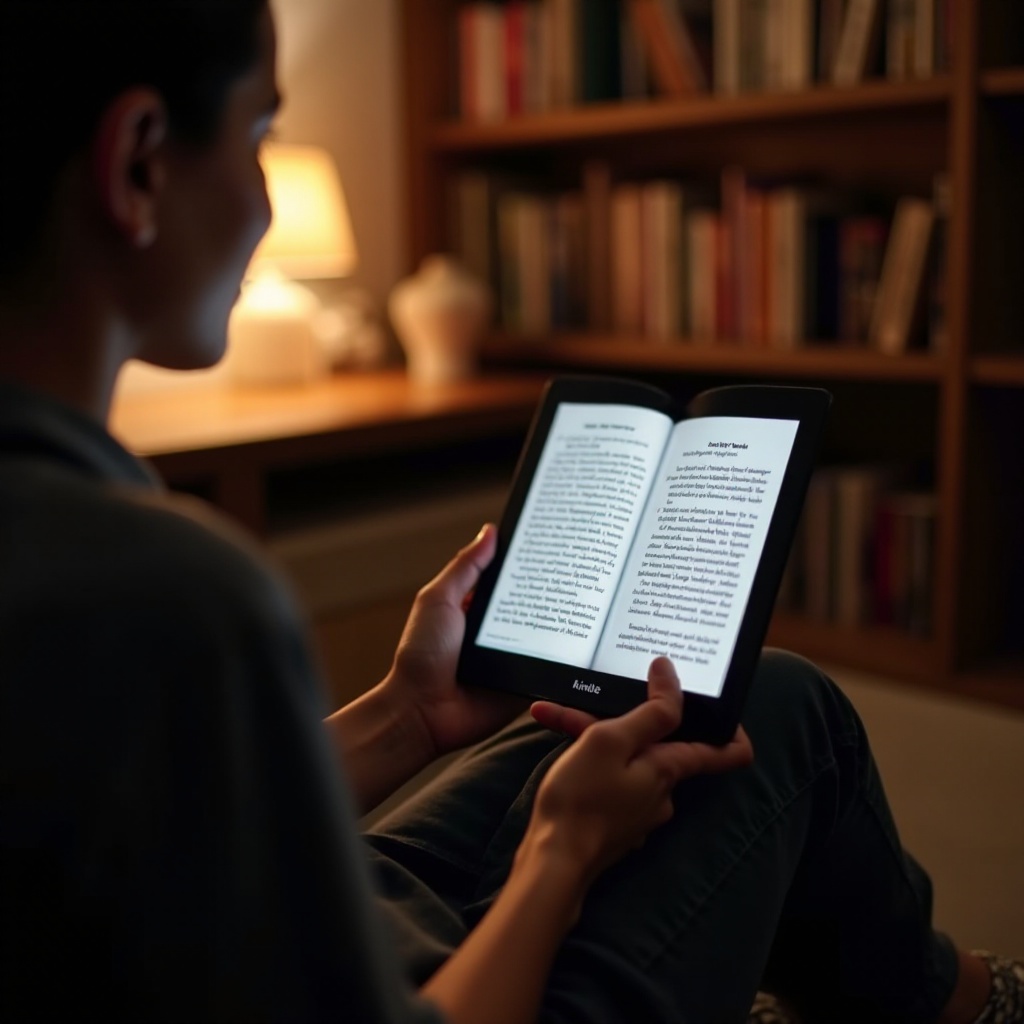
Kindle books are digital versions of books that can be read on Amazon’s Kindle devices or any device that supports the Kindle app. These ebooks cover a wide array of genres, making it easy to find something that suits your taste.
Different Formats for Kindle
Amazon’s Kindle devices support a variety of formats, primarily AZW, which is specifically designed by Amazon for Kindle platforms. Additionally, Kindle readers can manage MOBI, PDF, and TXT formats, enabling users to access a diverse range of files.
Understanding the types of Kindle books and available formats sets the stage for setting up your Kindle device or app for use.
Setting Up Your Kindle Device or App
Before downloading books, you need to set up your Kindle device or app properly.
Registering Your Amazon Account
To download Kindle books, having an Amazon account is a prerequisite. If you don’t already have an account, go to Amazon’s website and create one. Once you have your credentials, power on your Kindle device or open the Kindle app and log in.
Connecting to Wi-Fi
After logging in, ensure that your device is connected to Wi-Fi. This connection is crucial as it allows you to access, purchase, and download books directly from the Kindle Store. Access the settings, find the Wi-Fi option, and connect to your network.
With your device set up and ready for action, it’s time to explore how you can purchase your desired Kindle books.
How to Purchase Kindle Books
Amazon makes buying Kindle books effortless with its user-friendly interface and vast library.
- Searching for Books on Amazon
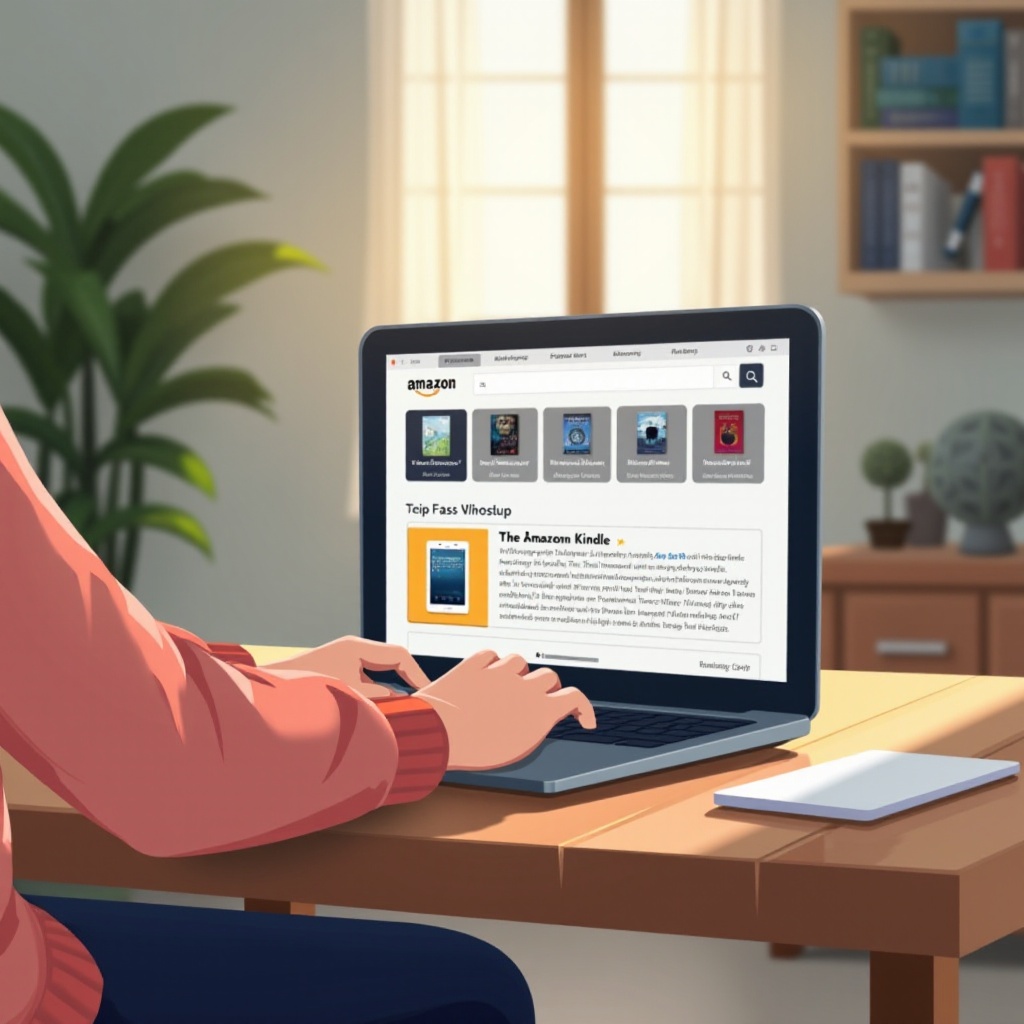
Go to Amazon or the Kindle Store on your device. Use the search functionality to input titles, authors, or genres that interest you. - One-Click Buying and Pricing Information
Once you have selected a book, you will be presented with details including the price. If one-click buying is enabled, a simple click will purchase the book and add it to your Kindle library for immediate download.
After purchasing, the next logical step is downloading the book to your specific device for reading.
Downloading Kindle Books on Various Devices
The downloading process varies slightly depending on the device you choose:
Kindle E-Reader
Once a purchase is complete, ensure your Kindle is connected to Wi-Fi. Your new books should automatically appear in your library. Simply tap on the cover to download and open it for reading.
Kindle App for Smartphones/Tablets
Open the Kindle app and sign in. Navigate to your library, where your purchased books will be displayed. Tap the cover of the book to initiate the download.
Kindle App on PC/Mac
After downloading and installing the Kindle app on your computer, log in to access your library. Click on a book to download it to your computer for offline reading.
Managing your Kindle library efficiently ensures that you can swiftly access your books whenever you want to read.
Managing Your Kindle Library
An organized library enhances your reading experience and makes book management easier.
Organizing Your Books
Use the Kindle’s feature to create collections, sorting your books by different criteria such as author, genre, or personal preference. This structure helps maintain an ordered library.
Deleting or Archiving Books
You can delete or archive books to clear space. Archiving a book removes it from your device temporarily, but it remains in your account for future re-downloads. Simply press and hold a book’s cover to delete or archive it.
Even with an organized library, issues can occasionally arise. Let’s go over common downloading problems and how to resolve them.
Troubleshooting Common Download Issues
Downloading issues might occur due to various reasons, but they can often be resolved easily.
Syncing Problems
If your book isn’t downloading, first check your Wi-Fi connection, and make sure your device is fully synced with your Amazon account. Go to ‘Settings’ and select ‘Sync My Kindle’ to ensure your library updates.
Book Not Downloading
Make sure there is enough storage on your device. Restart the device if the problem persists. Deregistering and then re-registering your Kindle device can also resolve persistent issues.

Conclusion
Downloading Amazon Kindle books is a straightforward process once you know the steps. Mastering these steps allows you to seamlessly enjoy an extensive library of books on your device, taking full advantage of the convenience Kindle offers. Whether you’re traveling, relaxing at home, or anywhere in between, your favorite reads are now just a download away.
Frequently Asked Questions
How can I transfer books between devices?
Sync all devices using the same Amazon account. Your library will automatically synchronize and appear on all devices, allowing you to download and read books wherever you want.
Are all Kindle books compatible with all devices?
Most Kindle books are compatible across all devices. However, some interactive textbooks and enhanced editions may have specific device requirements, especially for older models.
What should I do if a book won’t download?
Ensure your device is online and has enough storage. Restarting the device can help. If issues persist, contact Amazon’s support for further assistance.