
Does iMessage Show Screenshots? Truth, Myths, and Privacy for iPhone, iPad, and Mac
Introduction
You opened Messages, snapped a screenshot for your records, and paused. Does iMessage show screenshots to the other person? Many users worry that Apple might alert senders when someone captures a chat. The short answer is no. The Messages app does not notify anyone when you take a screenshot or record the screen of a conversation on iPhone, iPad, or Mac.
Confusion persists because people mix up Messages with apps that do send alerts, such as Snapchat. Viral posts also claim a new update adds screenshot alerts, while others assume Invisible Ink blocks captures. Apple does display capture notifications in a few places outside of Messages, which adds to the misunderstandings.
This guide sets the record straight. You will see what Messages does and does not notify, how screenshots and screen recordings behave across Apple devices, where Apple does show capture alerts outside of chats, and how to share more safely. With the basics in place, the next section gives you a direct answer before we explore the details.
Quick Answer: Does iMessage Show Screenshots?
No. The Messages app does not alert people when you take a screenshot or record your screen during a conversation. That applies to one‑on‑one chats, group threads, and any content type, including text, photos, videos, voice notes, and attachments. The recipient does not see a banner, label, or message that says you captured anything. The same holds for screen recordings of the Messages app.
However, Messages does surface other events like read receipts, edits, and unsends. Apple also shows capture alerts in certain features outside of Messages, which can fuel the confusion. To make sense of the difference, it helps to know exactly what Messages does and does not notify.
What iMessage Does and Doesn’t Notify You About
Messages shows several status updates so people can understand activity in a conversation. None of these include screenshot alerts. Knowing what you will see, and what you will not, clears up most misconceptions and prepares you to think about screenshots in context.
Read receipts, delivery status, and typing indicators
- Delivery and Read: You may see delivery and read status under blue‑bubble iMessages. Read receipts appear only if the recipient enables them. You can toggle them per contact or globally.
- Typing indicators: The three‑dot bubble appears when the other person is actively typing in an iMessage thread. It does not appear for SMS or all carrier implementations of RCS.
- No screenshot status: You will not see a status such as ‘Screenshot’ or ‘Captured’ in the chat.
Edits, unsend notifications, tapbacks, and stickers
- Edit and Unsend: If someone edits a message or unsends it within Apple limits, Messages posts a visible note such as ‘Edited’ or ‘You unsent a message.
- Tapbacks and Stickers: Reactions like a heart or thumbs up show as tapbacks on a specific bubble. Stickers and Live Stickers appear in‑line.
- No capture alert: Reactions and edits do not include any information about screenshots.
Media actions, link previews, and ‘Shared with You
- Media: When someone posts photos or videos, Messages may generate thumbnails and quick‑view playback controls. It does not show if anyone captured that media via screenshot.
- Link previews and ‘Shared with You’: Links often get automatic previews. Compatible links can surface later in other apps under ‘Shared with You.’ None of this tracks or exposes screenshots.
You now know what Messages displays during normal use. Next, we will look at how screenshots and screen recordings behave on each platform, so you understand what actually happens when you capture a chat.
Screenshots and Screen Recordings in iMessage: iOS, iPadOS, and macOS
Screenshots and screen recordings behave the same way in the Messages app across Apple platforms: they do not notify others. Still, platform details matter for how you capture, edit, and share those images and recordings. Understanding the mechanics helps you avoid accidental exposure and maintain control over what you share.
Capturing text conversations
- iPhone and iPad: Press the Side + Volume Up buttons to capture a screenshot. You can mark it up, crop the contact name, and save or share it. The other person receives no alert.
- Mac: Use Shift+Command+4 for a selection or Shift+Command+5 for the screenshot and recording tools. You can capture the Messages window or a specific area. Again, no alert is sent to anyone in the chat.
- Good practice: Remove contact photos and sensitive info before sharing. Crop or blur names, email addresses, and phone numbers to avoid exposing personal data.
Capturing photos, videos, and voice notes
- Photos and videos in Messages can be screenshotted without alerts, whether they display in the chat or full screen.
- Voice notes playback screens can also be captured or recorded without notifying the sender.
- Context matters: If the media contains private information, treat it with care. Once you share a capture, you lose control over where it goes next.
Screen recording vs. screenshot
- Screen recording captures a video of the Messages interface. Messages does not notify participants when you record.
- App restrictions: Some third‑party apps block or black out screen recording. The Messages app does not do this.
- Metadata: Recordings and screenshots can include time, date, and device details. Remove or obscure them if necessary before sharing.
Now that you understand the behavior in Messages, it is easier to see why confusion happens. Apple does show capture‑related alerts in other apps and features, which do not apply to Messages but often get mixed up with it.
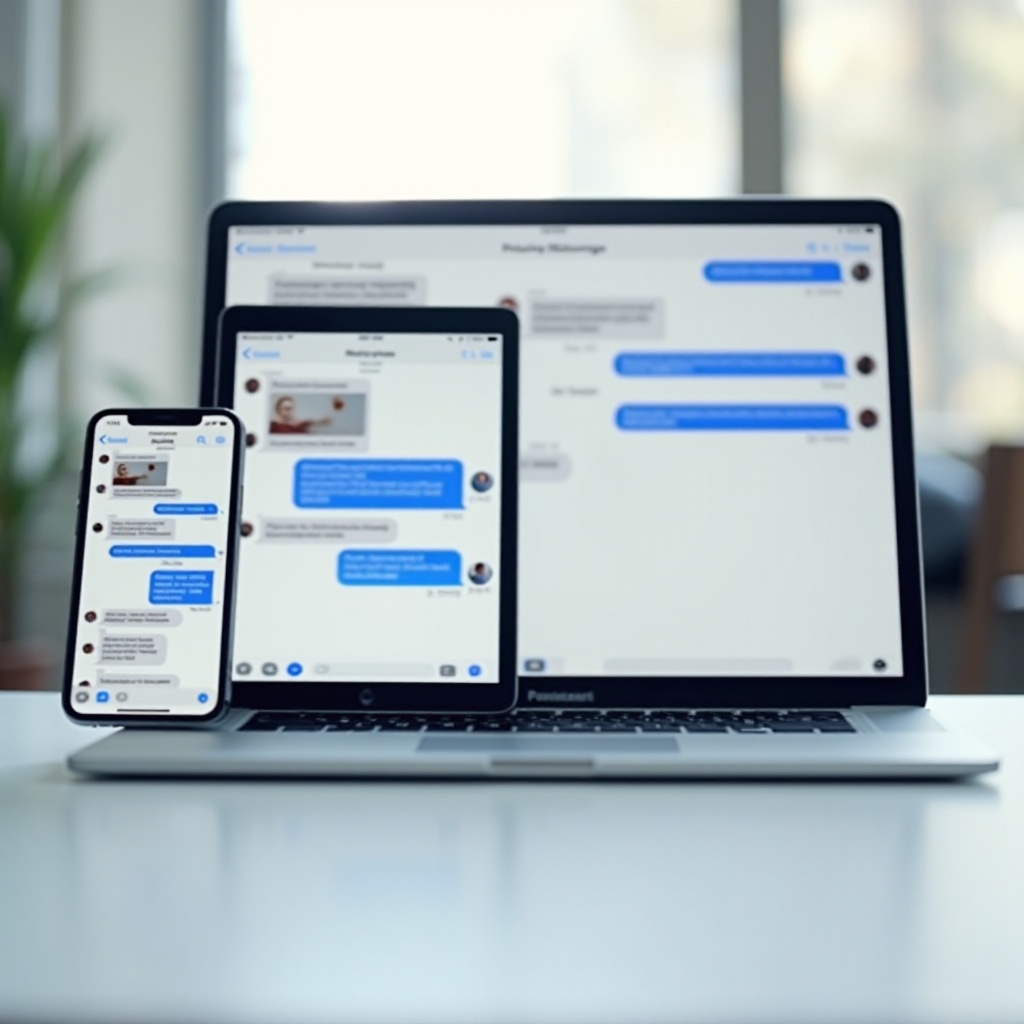
What Apple Does Notify About—Outside the Messages App
Apple displays capture notifications in a few features outside of the Messages app. These alerts help participants understand when someone saves content from a live session or collaborates in a shared space. They are separate from chats and do not create any screenshot alerts in Messages.
FaceTime Live Photos alerts
- When someone takes a Live Photo during a FaceTime call, participants see an on‑screen notification.
- You can turn FaceTime Live Photos off in settings or disallow them per call if you prefer.
- This does not affect the Messages app. A FaceTime alert never shows up in your chat threads.
Collaboration notifications in Notes, Pages, and more
- Apple collaboration features show when someone joins, edits, or comments in shared documents.
- You may get in‑app banners or system alerts for collaboration activity. These do not track screenshots.
- If you share document links in Messages, collaboration updates still appear in the productivity app, not in the chat.
Shared Albums and photo activity
- Shared Albums in Photos notify participants when someone adds, likes, or comments on images.
- These alerts reflect activity in Photos, not screenshots in Messages.
- If you send Shared Album links in a chat, album notifications remain separate from the thread.
With those boundaries clear, we can address the myths head‑on. The next section debunks the most common claims about screenshot alerts in Messages so you can ignore bad advice with confidence.
Common Myths and Viral Rumors Debunked
Rumors spread fast, and many claims about screenshot alerts in Messages sound plausible at first glance. When you test them, they fall apart. Clearing them up reduces anxiety and helps you focus on real privacy steps that make a difference.
‘A recent update adds screenshot alerts in Messages
- False. Messages has not added screenshot alerts. After updates, people often misinterpret other new notifications, like edit and unsend notes, as screenshot notices.
- If Apple ever introduces screenshot alerts, you will see them in official release notes and support pages. That has not happened.
‘Invisible Ink prevents screenshots
- False. Invisible Ink blurs message contents until you tap to reveal them. It reduces shoulder surfing but does not stop screenshots.
- Once revealed on screen, anyone can capture the content. The sender receives no alert.
‘You will see a Screenshot label in chat
- False. Messages does not add a ‘Screenshot’ tag or banner in any thread.
- Posts showing that label usually come from other apps or are mockups.
With myths out of the way, let us move into edge cases that often raise questions. Understanding these scenarios helps you apply the same rules to group chats, mixed threads, and even external capture methods.
Edge Cases People Ask About
Some scenarios are not obvious until you encounter them. Here is how the rules apply in group chats, mixed SMS or RCS threads, and situations involving third‑party tools and external cameras.
Group chats and mixed SMS/iMessage threads
- Group iMessage: Screenshots of group chats do not notify anyone. The same rule applies to all participants.
- Mixed threads: When a group includes Android users, Messages may switch to SMS or RCS for certain participants. Screenshot behavior does not change. No one gets notified.
- Etiquette tip: Group chats often include people who did not consent to being captured. Ask before sharing screenshots outside the group.
RCS vs. SMS vs. iMessage behavior on iPhone
- iMessage (blue bubbles): No screenshot notifications.
- SMS or RCS (green bubbles on supported carriers): No screenshot notifications. Changing the transport does not add capture alerts.
- Delivery indicators vary by transport, but none of them on iPhone include screenshot alerts.
Third‑party apps, Shortcuts, and external cameras
- Third‑party add‑ons cannot force Messages to send screenshot alerts. iOS does not expose that trigger for chats.
- Shortcuts and automations also cannot detect that someone else took a screenshot of a conversation.
- External cameras and separate devices can always film your screen. Never rely on technology alone to prevent copying.
Now that you know where detection ends, the next section focuses on what you can do. The goal is to reduce risk and limit exposure without sacrificing everyday convenience.
Privacy and Safety Tips for Sharing in Messages
You cannot stop a recipient from capturing what appears on their screen, but you can lower the chance of accidental leaks and make sharing safer. These steps help you control exposure, especially when a conversation includes sensitive details.
Manage previews, read receipts, and forwarding to other devices
- Disable Lock Screen previews:
1) Settings > Notifications > Messages
2) ‘Show Previews’ > ‘When Unlocked - Control read receipts:
1) Messages > Settings > ‘Send Read Receipts’ (toggle off globally)
2) In a chat > contact name > Info > ‘Send Read Receipts’ (toggle per contact) - Limit forwarding to other devices:
1) Settings > Messages > ‘Text Message Forwarding
2) Turn off devices you do not control
Safety Check, Sensitive Content Warning, and Screen Time tools
- Safety Check: Quickly review and reset sharing access if your safety is at risk.
1) Settings > Privacy & Security > ‘Safety Check
2) Use ‘Emergency Reset’ to revoke shared access and sign out of iCloud on other devices - Sensitive Content Warning: Blur sensitive images before they appear.
1) Settings > Privacy & Security > ‘Sensitive Content Warning
2) Turn on for Messages and supported apps - Screen Time for families:
1) Settings > ‘Screen Time
2) Use Communication Limits for children and restrict contact settings
Watermarking, view‑only links, and avoiding screenshots
- Watermark sensitive images before sending to discourage casual reposting.
- Use view‑only links for documents when possible, but assume recipients can still capture the screen.
- Avoid sending content you cannot afford to lose. When stakes are high, switch to in‑person or phone verification.
These habits go a long way toward keeping private messages under control. To make them stick, run a quick settings check on each device you own so you do not leak data through sync or old hardware.
Settings Checkup: iPhone, iPad, and Mac
A brief settings audit can close common gaps that lead to unintended exposure. Focus on Messages, notifications, sync, and account cleanup. This proactive step complements the privacy habits above and prevents surprises later.
Messages, Notifications, and Focus
- Messages:
- Keep ‘Send Read Receipts’ off unless you need them.
- Use ‘Filter Unknown Senders’ to reduce inbox clutter from unknown numbers.
- Notifications:
- Set ‘Show Previews’ to ‘When Unlocked.
- Consider ‘Deliver Quietly’ for noisy group threads you do not need immediately.
- Focus:
- Create a Work or Personal Focus that limits message notifications to key contacts.
- Sync Focus across devices so a Mac or iPad does not reveal alerts you meant to hide.
Photos, iCloud, and device sync
- iCloud Photos:
- Review Shared Albums and who can view them.
- Remove people who no longer need access.
- Messages in iCloud:
- Settings > [Your Name] > iCloud > Apps Using iCloud > Messages
- Turn it on only if you want chats synced across devices you control.
- Auto‑Save:
- In Messages settings, avoid auto‑saving photos if you prefer manual control.
Remove old devices from your Apple ID
- Old devices can mirror your messages if they remain signed in.
- Check on iPhone or iPad:
1) Settings > [Your Name]
2) Scroll to Devices
3) Remove any you no longer use - On a Mac:
- System Settings > [Your Name] > Devices to review and remove.
Conclusion
The core answer to the question ‘does iMessage show screenshots’ is simple: it does not. Messages does not notify anyone when you capture a chat, whether it is a screenshot or a screen recording, on iPhone, iPad, or Mac. Apple does show alerts for other events in Messages, like edits and unsends, and it shows capture notifications in separate apps such as FaceTime. Those signals often cause the confusion.
You cannot rely on software to prevent copying once someone can see the screen. What you can do is limit exposure. Manage previews, control read receipts, tighten device access, and use Safety Check if necessary. Share carefully, watermark sensitive visuals, and avoid sending content that could harm you if it leaks. With facts and smart habits, you keep control where it belongs — with you.
Frequently Asked Questions
Can I get notified if someone screenshots an iMessage?
No. Messages does not provide screenshot or screen‑recording alerts. There is no built‑in setting, app, or Shortcut that can add this feature to iMessage. You may see notifications for edits, unsends, tapbacks, or read receipts, but none of those relate to captures. If you need trackable sharing, use view‑only cloud links with activity logs, and remember that recipients can still capture the screen.
Can I disable screenshots or block screen recording in my chats?
No. Messages does not include tools to block screenshots or screen recordings. Some apps can black out content during recording, but Messages does not. If a conversation contains sensitive information, reduce risk by sharing less, watermarking images, or moving the discussion to a more controlled channel. Always assume recipients can capture what they can see.
Do Android or RCS threads in the Messages app notify screenshots?
No. Threads that use SMS or RCS in the Messages app do not add screenshot alerts. The app’s behavior stays the same: you can capture the screen without triggering a notification to other participants. Delivery indicators and media handling can differ across iMessage, SMS, and RCS, but none of them on iPhone notify screenshots.