
Phone Plugged In but Losing Charge? Fix It Fast with These Proven Steps
Introduction
Seeing your phone plugged in but losing charge feels wrong. The cable locks in, the bolt icon shows, yet the percentage drops. This problem always comes down to a mismatch between power in and power out, plus the added effects of heat or hardware faults. The good news: you can isolate the cause with quick checks, then apply targeted fixes that work on both iPhone and Android. In this guide, you will start with simple tests, learn how to match charger output to your phone, trim heavy background drain, reduce heat, and spot issues that need repair. Use these steps in order and you will quickly tell if the problem is power source, cable and port, software, or the battery itself.
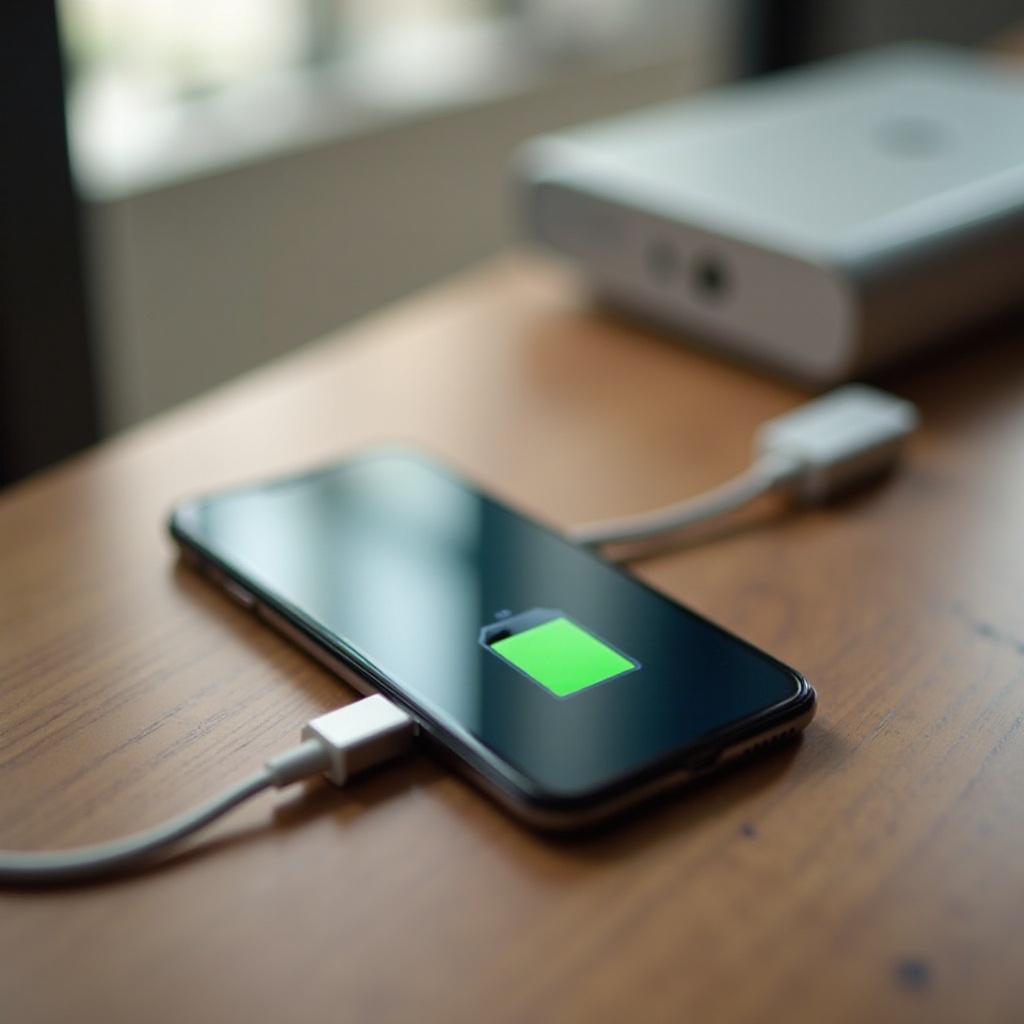
Quick 60-Second Checks to Confirm the Symptom
Before deep fixes, confirm the pattern:
– Watch the battery percentage for two to three minutes while plugged in.
– Gently wiggle the connector. If charging cuts in and out, suspect the port or cable.
– Move the charger to a known good wall outlet. Avoid power strips and old extension cords.
– Swap in a certified, high watt charger and a second cable.
– Turn the screen off for one minute. If the percentage then rises, usage is outrunning the charger.
If these checks point to weak input or flaky hardware, the next step is to measure the strength of your power source and the capability of your charger.
Why Your Phone Is Plugged In but Losing Charge: Power Source and Charger Output
A phone drains while charging when the charger delivers fewer watts than the device consumes. Wall chargers usually supply more stable power than laptop USB or basic car ports. Many laptop USB-A ports sit near 2.5 to 5 watts. Older car ports often cap around 5 watts too. A modern phone under load can use 8 to 20 watts or more. If the input never exceeds the draw, the percentage falls even though the icon shows charging. Match the standard your phone expects. For USB-C models, look for USB Power Delivery and, for some Android phones, PPS support. For older devices, a reputable Quick Charge or OEM fast charger matters. Read the wattage on the adapter and confirm the cable can carry that power. If input looks correct, focus on the link between the charger and your phone: the cable and the port.
Cable Quality and Charging Port Cleaning: Tiny Issues, Big Drain
Cables fail far more often than adapters. Internal breaks, corroded pins, and cheap builds restrict current. Use certified cables: MFi for Lightning and USB-IF certified for USB-C. Shorter cables often sustain higher current with less loss. Then check the phone port with a bright light. Pocket lint, dust, and oxidation block a firm fit and increase resistance, which lowers charge rate. Power the phone down and clean the port with a wooden toothpick or a plastic pick. A brief burst of compressed air can help. Do not use metal tools. After cleaning, test again with a known good cable. If the phone still falls behind while plugged in, heat may be the limiting factor.
Heat Is the Enemy: Keep Your Phone Cool While Charging
Heat slows charging and speeds battery wear. When the phone warms up, the system lowers current to protect the battery. If you use a heavy app at the same time, the device can draw more than the charger provides, and you will see a net drop. Remove thick or insulated cases. Keep the phone on a hard, cool surface away from sunlit windows, car dashboards, or vents. If it feels hot, pause power-hungry tasks and let it cool for a few minutes. Once temperature drops, charge speed rises. With temperature under control, you can reduce power draw to give the charger a chance to get ahead of usage.
Reduce Power Load: Screen, Radios, and Background Tasks
If your phone uses more power than the charger supplies, reduce the load so the battery can recover.
– Dim the screen and turn on auto brightness.
– Temporarily disable 5G or switch to Wi‑Fi in areas with weak cellular signal.
– Turn off Bluetooth and location when you do not need them.
– Close games, maps, cameras, and streaming apps while charging.
– Turn on Low Power Mode on iPhone or Battery Saver on Android.
– Pause large downloads, cloud backups, and app updates.
These changes free watts for the battery. To find the worst offenders and make changes that stick, check your phone’s battery usage detail next.
Identify Draining Apps and Processes on iPhone and Android
Your battery stats show exactly which apps burn power.
– On iPhone, open Settings, tap Battery, and review Battery Usage by App and Activity. Look for large background time, audio, GPS, or photos indexing.
– On Android, open Settings, tap Battery, then Battery usage. Sort since last full charge, and tap any item to see foreground and background use.
Target the top drainers. Limit background activity, remove location access, or uninstall apps that misbehave. If the list looks normal but the phone still drains while charging, use platform controls to further reduce waste.
iPhone-Specific Fixes for Charging Drain
iPhone offers simple switches that tame power draw and improve charge recovery.
– Turn on Low Power Mode to reduce background refresh and visual effects.
– Disable Background App Refresh for nonessential apps.
– Change location access for heavy apps to While Using or Never.
– Switch from 5G Auto to LTE when signal is weak, or prefer Wi‑Fi when available.
– Check Battery Health in Settings. A low maximum capacity or a service message signals the need for replacement.
– Turn off Optimized Battery Charging when you need a quick top-up, then turn it back on later for long term health.
If you use Android, you have similar controls with different names and menus. Move on to the Android section for parallel steps.
Android-Specific Fixes for Charging Drain
Android provides granular control over background use and performance.
– Enable Battery Saver to lower CPU speed, cut animations, and restrict background activity.
– Turn on Adaptive Battery to limit rarely used apps.
– In Apps settings, set heavy apps to Restricted or Optimized.
– Prefer Wi‑Fi over mobile data during charging, or toggle mobile data off when not needed.
– Drop the screen refresh rate temporarily from 120 Hz to 60 Hz on models that support it.
– Boot into Safe Mode to test third party apps. If drain stops, remove recent installs or known offenders.
– Install the latest system and Play system updates.
With platform tweaks in place, consider how special scenarios like gaming, navigation, and tethering change the math between input and output.
Special Scenarios: Gaming, Navigation, Tethering, and Weak Signal
Some tasks overwhelm small chargers and marginal cables.
– Gaming drives CPU, GPU, radios, haptics, and display. Draw often hits double digits in watts.
– Navigation uses GPS, data, and high brightness for long periods. A 5 watt source will not keep up.
– Hotspot tethering pushes the modem and Wi‑Fi or USB at once.
– Weak signal makes the modem boost transmit power, which can double or triple draw.
Solutions that work in these cases:
– Use a 20 watt or higher USB PD or PPS charger with a certified cable.
– Lower brightness and enable Battery Saver.
– Prefer Wi‑Fi for large downloads and updates.
– In cars, use a PD adapter in the 12 volt socket instead of the dashboard USB port.
If you cannot change the workload or source, consider wireless charging or a power bank as a temporary bridge until you reach a stronger outlet.
Wireless Charging and Power Banks: When They Help
Wireless charging helps when the wired port is unreliable, but it adds heat and loses efficiency. Align the coils carefully and remove thick cases. If the percentage still falls under heavy use, switch back to wired. For travel, carry a USB PD power bank rated at 20 watts or higher. Use a short, certified cable to minimize loss. Some banks support PPS, which can improve efficiency on compatible Android phones. If both wired and wireless struggle on a strong source, it is time to evaluate battery health and common myths.
Battery Health, Calibration Myths, and When to Replace
Batteries wear out. Capacity falls and internal resistance rises, which creates more heat and less charge acceptance. Check health indicators.
– On iPhone, go to Settings, then Battery, then Battery Health and Charging. A low maximum capacity or a service notice means you should plan a replacement.
– On Android, some phones expose health in Settings or through support tools. If not, watch for rapid drops, random shutdowns near 20 to 40 percent, and sustained heat at idle.
Ignore battery calibration myths. Full discharges do not fix lithium cells and can stress them. Keep daily cycles between roughly 20 and 80 percent when you can. If a healthy, high watt charger and a clean port still cannot outpace normal use, the battery likely needs replacement. Before you book a repair, run a simple, ordered troubleshooting flow to confirm you have covered every low cost fix.
Step-by-Step Troubleshooting Flow You Can Follow
Use this sequence to find the cause with minimal effort and cost:
1) Test with a known good 20 watt or higher PD or OEM fast charger and a certified cable.
2) Try a different wall outlet and avoid power strips.
3) Clean the charging port gently, then re.
4) Remove the case and charge on a cool, hard surface.
5) Turn on Low Power Mode or Battery Saver and dim the screen.
6) Enable Airplane Mode and leave Wi‑Fi on if needed. Turn the screen off for five minutes. If the percentage rises, usage was the issue.
7) Review battery usage. Restrict or remove top draining apps.
8) Update the system, apps, and firmware.
9) On Android, boot into Safe Mode. On iPhone, use Reset All Settings to clear misconfigurations.
10) Compare wired and wireless charging behavior.
11) If the problem appears only in the car, switch to a PD car adapter.
12) If drain persists, check battery health and schedule service.
If service looks likely after these steps, decide whether the port, the battery, or a deeper board repair fits the symptoms.
When to Seek Professional Repair: Port, Battery, or Board-Level
Seek repair when basic fixes do not change the outcome on a strong, known good charger. Signs include charging that cuts out with slight cable movement, a loose or damaged port, overheating at idle, or shutdowns above 10 to 20 percent. A technician can test the port, run battery diagnostics, and check the charging circuits. Many cases end with a simple port or battery replacement. Board-level faults are less common but can appear after drops or liquid exposure. If repair time is not urgent, you can still reduce risk of a repeat problem by adopting healthy habits.
Prevention and Healthy Charging Habits for the Long Run
Small habits keep your phone stable and your battery healthy:
– Use OEM or certified PD and PPS chargers and short, quality cables.
– Avoid deep discharges and long periods at 100 percent when the phone is warm.
– Keep the phone cool. Remove thick cases while fast charging.
– Prefer Wi‑Fi over weak cellular, especially indoors.
– Limit constant background sync for nonessential apps.
– Clean the charging port every few months to remove pocket lint.
– In the car, pick a PD adapter rather than the dashboard USB port.
These steps reduce the chance you will see a phone plugged in but losing charge again. If the symptom returns, you now have a clear playbook to isolate and fix it quickly.
Conclusion
A phone that is plugged in but losing charge signals a mismatch between input and demand, often made worse by heat or aging hardware. Start with fast checks, then match a capable charger and certified cable to your device. Clean the port, reduce heavy loads, and keep the phone cool. Use platform tools to limit background activity, and check battery health to judge replacement timing. If the issue persists across strong chargers and clean ports, book a port or battery service. With a simple, stepwise approach, you can restore reliable charging and protect your battery for the long term.
Frequently Asked Questions
Why does my phone drain while charging in the car, and how can I stop it?
Many car USB ports provide only 5 watts and sit far from the alternator, so voltage can sag. Use a 20 watt or higher USB PD car adapter in the 12 volt socket and a certified cable. Lower brightness, close heavy apps, and prefer Wi‑Fi or LTE if 5G is weak to reduce draw.
Is it bad if my battery percentage drops while using fast charging?
A brief drop can occur under heavy load or heat, since the phone limits charge current to protect the battery. This is not harmful by itself. Reduce load, cool the phone, and use the original or certified fast charger and cable. If drops occur at idle, check the port, cable, and battery health.
Should I replace the battery if my phone loses charge while plugged in, or could it be the port?
Test both before replacing. Try a certified high watt charger and cable, clean the port, and gently wiggle the connector. If charging flickers or feels loose, service the port. If charging is stable but slow and health shows a service notice, replace the battery. If neither explains it, seek diagnostics for the charging circuit.