
External Hard Drive: What Does It Do? How It Works, When to Use One, and What to Buy
Introduction
You want a straight answer to a practical question: what does an external hard drive do? It gives you more space, protects your files with backups, and moves large data sets quickly between devices. You plug it in, the system mounts it, and you start using it like any other drive. With the right setup, it becomes a fast, reliable piece of your workflow. This guide explains how external drives work, why HDD and SSD options differ, which ports deliver real speed, and how to choose, set up, secure, and maintain a drive that fits your needs. By the end, you can buy with confidence and avoid common pitfalls.
What Is an External Hard Drive?
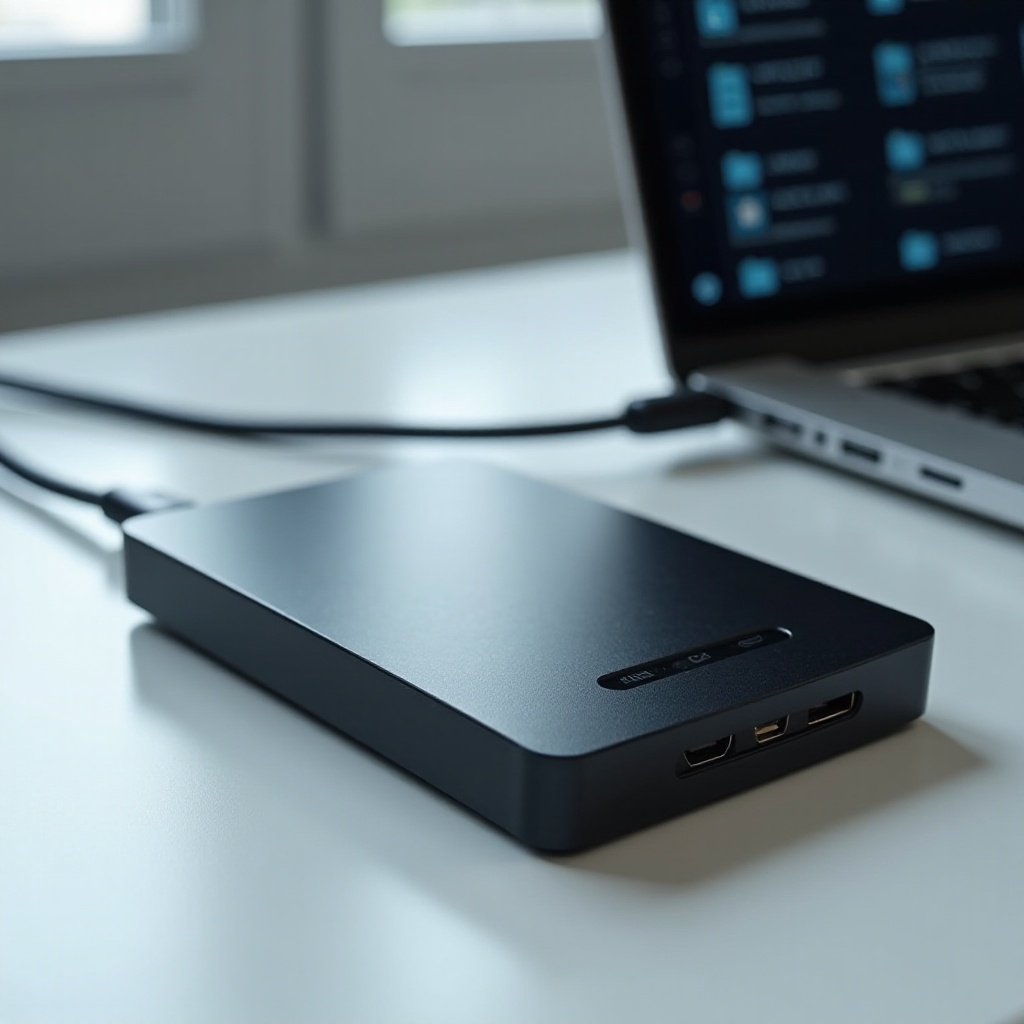
An external hard drive is a storage device inside a small enclosure that connects to your computer, phone, tablet, or game console over a cable. The enclosure houses either a spinning hard disk drive or a solid state drive, plus a bridge board that converts the drive’s native interface to USB or Thunderbolt. Portable drives draw power from the cable. Desktop drives use their own power adapter and often provide higher capacities.
Once connected, your system assigns the drive a letter or mounts it in Finder, so you can copy, open, and edit files just like you would on internal storage. You can format the drive to a file system that suits your devices, such as NTFS on Windows, APFS on macOS for Time Machine, or exFAT for simple cross platform sharing. Think of an external drive as a flexible, removable extension of your storage that you can carry, swap, label, and organize on your own terms.
If that is what an external drive is, the next question is what it actually does for you day to day. The following section focuses on the real tasks that make owning one worth it.
What Does an External Hard Drive Do? Core Functions You’ll Actually Use
External drives shine because they solve several common problems without complexity or a subscription.
- Backup and restore: Create copies of your documents, photos, videos, and projects. If your laptop fails, you can restore your files quickly. System images help you recover from software problems and malware.
- Storage expansion: Add terabytes of space to a cramped laptop or small desktop SSD without opening the case. External drives also extend storage for consoles where internal upgrades are tough or limited.
- Portability and sharing: Carry libraries, installers, and project folders between home, office, studio, and client sites. Hand off large deliverables without waiting on slow network uploads.
- Workflow offloading: Move scratch files, caches, and temporary assets off your internal disk. This reduces wear and frees headroom so apps stay responsive during heavy work.
- Archiving and cold storage: Move older, infrequently accessed files to a separate drive. Keep your main disk lean so search, indexing, and updates run smoother.
- Recovery and maintenance: Keep bootable installers and rescue media at hand. When a system acts up, plug in the drive, run tools, and get back to work.
These functions complement cloud services, not replace them. Your drive gives fast local speed and offline access. The cloud adds off site safety and easy sharing. When you combine both, you reduce risk, save time on large copies, and keep work moving even if the internet drops. To pick the right device for these jobs, it helps to know how drives work under the hood.
How External Drives Work Under the Hood
An external HDD stores data on spinning platters that a moving head reads and writes. It delivers strong capacity per dollar but has mechanical parts that prefer gentle handling. An external SSD stores data in NAND flash chips controlled by a memory controller. It has no moving parts, resists shock, and starts transfers quickly, especially with many small files.
The enclosure contains a bridge that translates the drive’s SATA or NVMe interface to USB or Thunderbolt and manages power and firmware. Your computer sees a standard storage device and reads a file system such as NTFS, APFS, or exFAT. Performance depends on three factors: the storage media, the port speed, and the file system. A fast NVMe SSD can feel slow if you plug it into a low speed USB port or use a poor cable. Likewise, a fragmented or overfilled drive can drop speed during long writes. Heat and firmware also affect sustained performance because controllers may throttle to manage temperature.
Understanding these pieces makes it easier to choose between HDD and SSD, which we compare next with a focus on real world tradeoffs.
External HDD vs External SSD: Differences That Matter in 2026
Both HDDs and SSDs handle backups, storage expansion, and file transfers, but each excels at different tasks. HDDs use spinning disks. They cost less per terabyte, making them ideal for large backups, media archives, and long term storage. They draw modest power, but they do not like shocks or drops. Their sequential transfer rates often fall in the low hundreds of megabytes per second.
SSDs use flash memory with no moving parts. They start fast and handle small files well, so they feel more responsive. They resist vibration and travel better. They cost more per terabyte but deliver high performance for editing, code repos, virtual machines, and game libraries. Over USB 3.2 Gen 2, many external SSDs deliver near the interface limit in bursts. NVMe SSDs inside USB4 or Thunderbolt enclosures can go much faster in sustained tasks if the host port supports it.
A practical rule: use HDDs where capacity and price matter most and speed matters less. Use SSDs where speed, durability, and silence matter most and capacity can be smaller. If you need both, pair a fast SSD for active projects with a large HDD for backups and archives. To get full value from either, choose good ports and cables, which we unpack next.
Ports, Cables, and Performance: USB 3.2, USB-C, USB4, Thunderbolt
The link between your drive and your device controls real world speed more than most people expect. USB 3.2 Gen 1 offers up to 5 Gbps. USB 3.2 Gen 2 doubles that to 10 Gbps. USB4 and Thunderbolt 3 or 4 reach up to 40 Gbps on capable hosts and cables. Some devices support USB 3.2 Gen 2×2 at 20 Gbps. Your drive and enclosure must also support the same mode to benefit.
A USB C cable is not always equal to another. Some charge only or limit data rate. Use short, certified cables from known brands. Plug directly into the laptop or desktop instead of a low power hub, especially for portable HDDs that draw more current on spin up. On Windows and macOS, you can check link speed in system information tools. If you use an adapter from USB C to USB A, expect lower speed if the port only supports Gen 1.
Match the drive’s interface to the fastest stable port you have. An NVMe SSD in a Thunderbolt enclosure can fly on a Thunderbolt port, but it will drop to USB speeds on a basic USB C port. A 2.5 inch HDD cannot exceed its mechanical limits, so a USB 3.2 Gen 1 port is often enough. With the link sorted, you can focus on the tasks that benefit most, which we break down next.
Top Use Cases: Backups, Storage Expansion, Creative Workflows, Gaming, and Travel
You can tailor drive type and port to your exact task list.
- Backups: For home users and small offices, a high capacity HDD offers the best value for scheduled backups and archives. If you want faster backups and quiet operation, a roomy SSD works well too, especially for laptops.
- Storage expansion: Laptops with small internal SSDs benefit from an external HDD for bulk storage or an external SSD for current projects. Label drives clearly and keep folders structured to avoid confusion.
- Creative workflows: Photographers and videographers get the best results when they place current project files and caches on a fast SSD, then move completed work to a large HDD or a second SSD for long term storage. Use fast ports to avoid import and export bottlenecks.
- Gaming: Many PCs and consoles run games from external SSDs with minimal load time penalties. HDDs work for bulk installs on supported platforms but load slower. Check your platform’s rules and format the drive as recommended.
- Travel: Rugged SSDs with drop and splash ratings hold up better in backpacks. They weigh less, draw less power, and copy files fast in short sessions.
These scenarios show how the same hardware can serve different goals. To get the right balance of capacity, speed, and cost, make a plan before you buy. The next section turns that plan into a simple checklist.
How to Choose the Right External Drive (Capacity, Speed, Ruggedness, Budget)
Start with your current data size and next year’s growth. If you have 1 TB of data today, a 2 TB to 4 TB drive gives headroom. For 4K or 8K video, budget more space than you think you need.
- Capacity: Backups work best when the drive is at least 2 to 3 times the size of your data. Media libraries and photo catalogs grow quickly, so do not skimp.
- Speed: Use HDDs for cold storage and big sequential transfers. Choose SSDs for active editing, code, and games. A USB 3.2 Gen 2 SSD is a solid baseline for most users.
- Interface and enclosure: If your device supports USB4 or Thunderbolt, consider an NVMe SSD enclosure to unlock higher sustained speeds. For simple backups, a SATA SSD or a portable HDD is fine.
- Ruggedness: For travel, pick drives with drop and water resistance. Rubberized edges and no moving parts help SSDs survive.
- Security: If you carry sensitive files, choose a drive with hardware encryption and a companion app, or plan to enable system encryption.
- Warranty and support: Longer warranties and clear support pages indicate better reliability and easier troubleshooting.
- Budget: Calculate cost per terabyte for HDDs and SSDs, then weigh that against your time saved by a faster drive.
Shortlist two or three models that fit your checklist and compare real reviews and benchmarks. When you buy, add a second cable and a sleeve to protect the drive. With a good pick in hand, the next step is a clean setup and format.
Setup and Formatting Basics for Windows, macOS, and Game Consoles
A straightforward setup prevents errors later.
- Unbox, inspect, and connect: Check the cable and connector type. Plug the drive into a high speed port on your device.
- Initialize and format on Windows: Open Disk Management, initialize as GPT, create a new simple volume, pick NTFS for Windows only or exFAT for cross platform use, and assign a clear name.
- Erase and format on macOS: Open Disk Utility, select the drive, click Erase, choose APFS for Time Machine and modern Macs or exFAT for sharing with Windows, and name it clearly.
- Prepare for consoles: Follow on screen prompts to set up for game or media storage. Each console has its own rules for running titles from external drives.
Before moving your data, run a quick file copy to confirm good performance and stability. Update any vendor utility or firmware if the maker recommends it. Always eject before you unplug. This clean foundation makes your backups reliable and your projects smooth. Next, put a smart backup plan in place.
Smarter Backups with the 3-2-1 Rule
The 3-2-1 rule protects you from hardware failure, accidents, and disasters without complex systems.
- Keep three copies of your data: one primary and two backups.
- Use two different storage types: for example, an external drive and a cloud service.
- Store one copy off site: rotate a second drive to another location or rely on the cloud for that copy.
On Windows, set File History or imaging on a schedule. On macOS, enable Time Machine and let it run automatically. Test your backups by restoring sample files and opening them. Rotate drives monthly or quarterly and keep a simple log. With backups rolling, lock down your data with encryption and good habits, which we cover next.
Security and Privacy: Encryption, Passwords, and Safe Practices
Treat your external drive like a wallet full of important data. If you lose it, you want your files to stay private.
- Turn on encryption: On Windows Pro editions, enable BitLocker for the external volume. On macOS, right click the drive in Finder and choose Encrypt. Some drives offer built in hardware encryption and keypad models.
- Use strong passwords and store recovery keys: Keep keys in a password manager. Do not reuse passwords.
- Protect against corruption: Always eject the drive before unplugging. Avoid moving the drive during writes.
- Limit exposure: Do not share personal drives with others. Create separate encrypted volumes for collaboration when needed.
- Sanitize before resale: Use a secure erase tool or a full overwrite, then confirm with a spot check.
With security enabled, think about where your data lives day to day. The next section compares your main options for storage beyond a single drive.
External Drive vs Cloud Storage vs NAS: Which to Use When
Each storage method has strengths. The best choice depends on how you work and who needs access.
- External drive: Fast, low cost, and simple. Best for primary backups, quick restores, and large file transfers. You control the hardware and privacy.
- Cloud storage: Off site protection and anywhere access. Great for collaboration and remote work. Speed depends on your internet. Costs scale with capacity and time.
- NAS on your network: Shared, always on storage in your home or office. Ideal for teams, media streaming, and automated backups. Requires setup and maintenance, plus a backup for the NAS itself.
Most people get the best results from a hybrid approach. Keep a local external drive for fast backups and active work. Sync key folders to the cloud for off site safety. If you need shared libraries or media servers, add a NAS and back it up to an external drive or the cloud. No matter what you choose, the next step is staying ahead of problems with simple troubleshooting habits.
Troubleshooting and Common Pitfalls to Avoid
Most drive issues come from cables, ports, power, or formatting rather than the drive itself.
- Start with the link: Try another short, certified USB C cable and a different port. Avoid low power hubs and plug into the device directly.
- Check the file system: On Windows, use Disk Management to see if the volume mounted. On macOS, use Disk Utility. Repair the file system if needed.
- Update and retest: Update your OS and any vendor firmware or utilities. Retest with a large file copy rather than many tiny files.
- Manage power and sleep: Turn off sleep timers during long transfers. Keep the device on stable power.
- Watch for warning signs: Clicking sounds, frequent disconnects, or repeated file errors mean back up now and replace parts. Swap the cable or power adapter before you declare the drive dead.
Troubleshooting helps you keep a drive running, but prevention works even better. The next section shows how to care for your drive so it lasts longer.
Care, Maintenance, and Lifespan Tips
Good care keeps performance steady and reduces risk of failure.
- Handle with care: Avoid drops and heavy pressure. Place HDDs on stable surfaces when in use.
- Keep it cool: Do not block vents on desktop drives. Give portable drives airflow during long copies.
- Inspect cables and ports: Replace frayed or loose cables. Keep ports clean.
- Monitor health: Use the maker’s tools to check SMART data and run quick tests. Replace the drive if errors rise over time.
- Update when needed: Apply firmware updates that fix stability or performance issues.
- Test restores: Every few months, restore a few files from backup to confirm everything works.
Plan to replace backup drives proactively when the warranty ends or when health data trends downward. SSDs handle movement better and offer fast access, but they still need backups. HDDs deliver unmatched capacity per dollar but prefer gentle handling. With care and a schedule, your external drive remains a reliable partner.
Conclusion
An external hard drive gives you more space, faster workflows, and control over your data at a fair price. Use HDDs when capacity matters most and SSDs when speed and durability matter most. Match the drive and enclosure to your fastest stable port and use certified cables. Format the drive for your devices, turn on encryption, and follow the 3-2-1 backup rule. With a clear plan and a few good habits, you can protect your files, avoid slowdowns, and keep every project moving with confidence.
Frequently Asked Questions
Is an external hard drive still worth it if I already use cloud storage?
Yes. A local drive gives fast backups and restores without waiting on the internet. You can copy terabytes in hours instead of days, keep full system images, and work offline during travel or outages. Combine a drive for primary backups and large transfers with cloud for off-site protection and collaboration. The mix lowers risk and saves time.
Can I run games and apps directly from an external drive, and will it be slower?
Often yes, especially with external SSDs. Performance depends on your drive, port, and platform. A USB 3.2 Gen 2 or Thunderbolt SSD feels close to internal storage for many titles and apps. HDDs load slower. Some consoles restrict what can run from USB or require internal storage for certain games. Check your device’s support pages and use the fastest stable port.
How long do external hard drives last, and when should I replace one?
Most drives run for years with normal use. HDDs wear from mechanics; SSDs wear from write cycles. Monitor SMART health with the maker’s tool and watch for rising errors, disconnects, or unusual noise. Replace the drive if tests fail or health trends down. Follow the 3-2-1 rule so a single failure never risks your data, and rotate backup drives on a schedule.