
How to Fix iPhone SOS Mode: Step-by-Step Guide
Introduction
Encountering unexpected iPhone SOS mode activation can lead to unwanted anxiety. SOS mode is an essential feature for safety, designed to swiftly connect you with emergency services when needed. This guide aims to help you understand, disable, and prevent SOS mode activation on your iPhone. Whether you are an experienced Apple user or someone new, effectively managing SOS mode ensures your device runs smoothly according to your preferences.
Understanding iPhone SOS Mode
What is iPhone SOS Mode?
SOS mode is a crucial feature, making it simpler to contact emergency services by just a few quick actions on your iPhone. This feature aims to enhance personal safety, allowing you to alert both authorities and emergency contacts during distressing situations. However, while its benefits are undeniable, accidental activation is not uncommon and can cause unnecessary alarms.
Common Reasons for Activation
Accidental activation often occurs due to regular handling, such as pressing the side and volume buttons at the same time, or not being familiar with the device’s layout. Incorrectly configured sensitivity settings might also lead to unintended SOS calls. Awareness of these common causes is key to proactively preventing unwanted interruptions.
Steps to Disable SOS Mode Quickly
Accidentally triggering SOS mode can cause unnecessary panic, but disabling it is straightforward.
Using Side and Volume Buttons
- Press and hold the side button together with any volume button.
- Slide the ‘Emergency SOS’ slider to turn it off.
- To cancel the call, press ‘Stop’ on the call screen if it starts dialing.
Accessing Settings to Disable SOS
- Open the ‘Settings’ app.
- Choose ‘Emergency SOS’.
- Turn off ‘Auto Call’ to avoid inadvertent calls.
- Optionally, remove ‘Call with Side Button’ to prevent unintentional activation.
By following these steps, you reduce the chance of mistakenly contacting emergency services, enabling smoother device usage.
Preventing Accidental Activation of SOS Mode
Preemptive actions can minimize the chances of unwanted SOS activation, keeping it functional just for genuine emergencies.
Adjusting Device Sensitivity
Navigate to the ‘Touch’ and ‘Face ID & Passcode’ settings to tailor sensitivity preferences that match your use habits. By refining these settings, you decrease unexpected activations.
Customizing Emergency Contacts
Accurate emergency contacts ensure that SOS mode performs its intended role when purposely activated. To update contacts, enter the Health app, tap ‘Medical ID’, and then ‘Edit’. Keeping emergency contacts up-to-date ensures assistance is correctly directed during emergencies.
These preventive measures help maintain control, providing a seamless experience and ensuring SOS mode is utilized effectively when necessary.
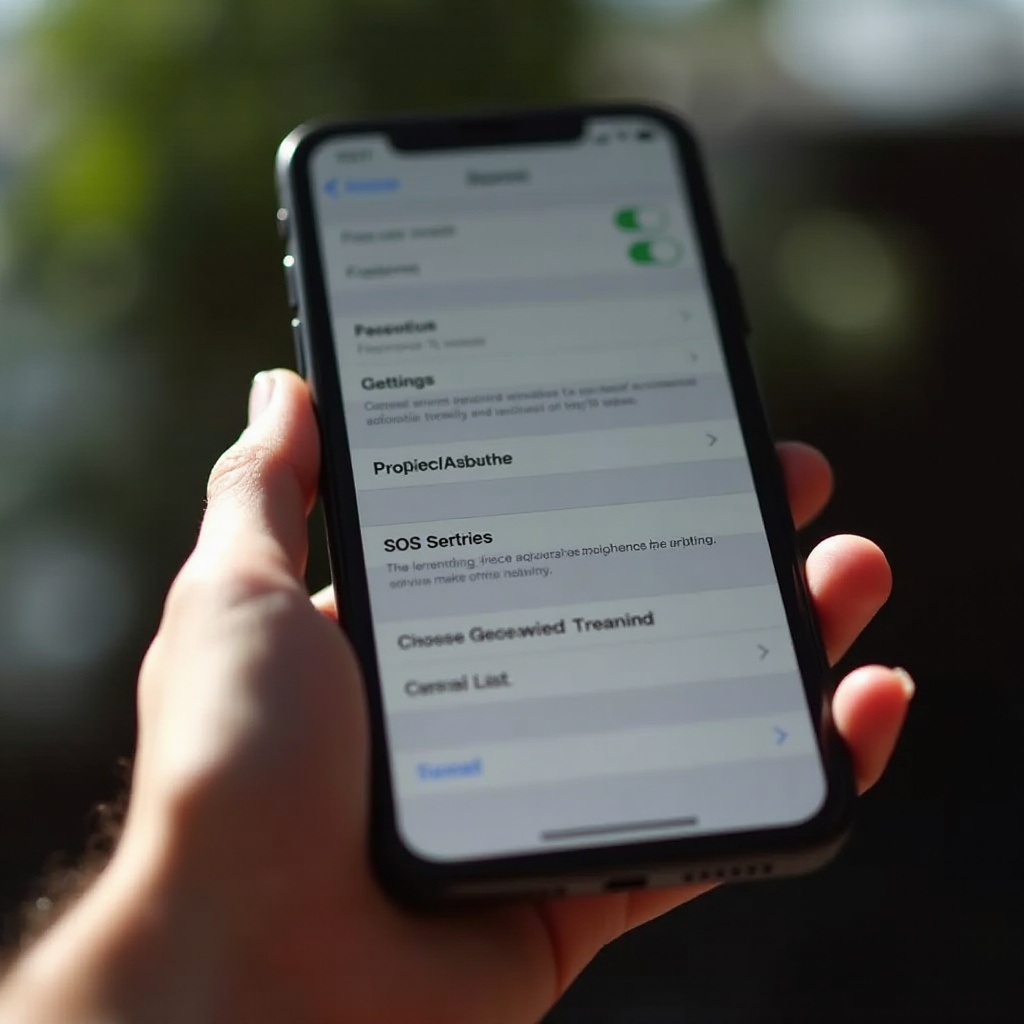
Troubleshooting Persistent SOS Mode Issues
Even with preventive actions, SOS mode problems can linger. Here’s how to resolve ongoing issues effectively.
Updating iOS Software
Regular iOS updates can address and fix system bugs, including SOS mode glitches. Ensure your iOS is updated by going to Settings > General > Software Update.
Performing a Factory Reset
If issues persist, consider a factory reset. This step erases all data, so create a data backup first. Navigate to Settings, select General, then ‘Reset’, and opt for ‘Erase All Content and Settings’.
Contacting Apple Support
If basic troubleshooting doesn’t solve the issues, consult Apple Support for expert advice tailored to your device’s specific needs. Their technical support can resolve complexities beyond basic methods.
These troubleshooting strategies are designed to enhance the reliability of your device, ensuring SOS mode operates effectively when needed.
Model-Specific Fixes for iPhone SOS Mode
Different iPhone models may require distinct strategies due to design and feature variations.
iPhone X and Newer Models
On these models, monitor the side button and Face ID settings regularly. Their design makes accidental pressing likelier, which may trigger SOS activation.
Older iPhone Models
For older devices, verify the integrity of the home button and related functions. Wear and tear can lead to unintended activations, so regular checks help mitigate this.
By focusing on model-specific insights, you can align prevention methods with your iPhone’s distinct design features.
Conclusion
Regaining control over your iPhone’s SOS mode boosts utility and minimizes disturbances. By knowing its functions, disabling options, and proactive prevention steps, you ensure peace of mind. Persistent challenges can typically be solved with simple troubleshooting methods or by considering specific model tips.
Frequently Asked Questions
Why does my iPhone keep going into SOS mode?
Your iPhone might be entering SOS mode due to incorrect sensitivity settings or accidental button presses. Adjusting these settings should help minimize unintended triggers.
How do I permanently turn off SOS mode on my iPhone?
While you can’t completely turn off SOS mode, you can disable features like Auto Call and the side button function that can activate it, reducing accidental usage.
Will adjusting SOS settings affect my emergency contacts?
Changing SOS settings doesn’t affect your emergency contacts. They remain configured for essential alerts, preserving your safety protocol.