
Verizon Router Cable Setup: The Complete 2025 Guide to Coax and Ethernet
Introduction
Verizon Fios brings fiber to your home, but the final few cables you connect decide whether your network feels fast and reliable or laggy and inconsistent. This guide walks you through a precise verizon router cable setup for both coax and Ethernet so you can wire the system right the first time. You will identify your router and ONT, pick the correct WAN method, and prepare the exact cables and splitters you need. You will also keep Verizon TV boxes working over MoCA while you activate and secure Wi‑Fi, then validate speeds and stability. If you still use coax WAN, you will learn when and how to upgrade to Ethernet for better performance. Start by clarifying what the word cable means inside a Fios home.
What ‘Cable’ Means with Verizon: Coax vs. Ethernet
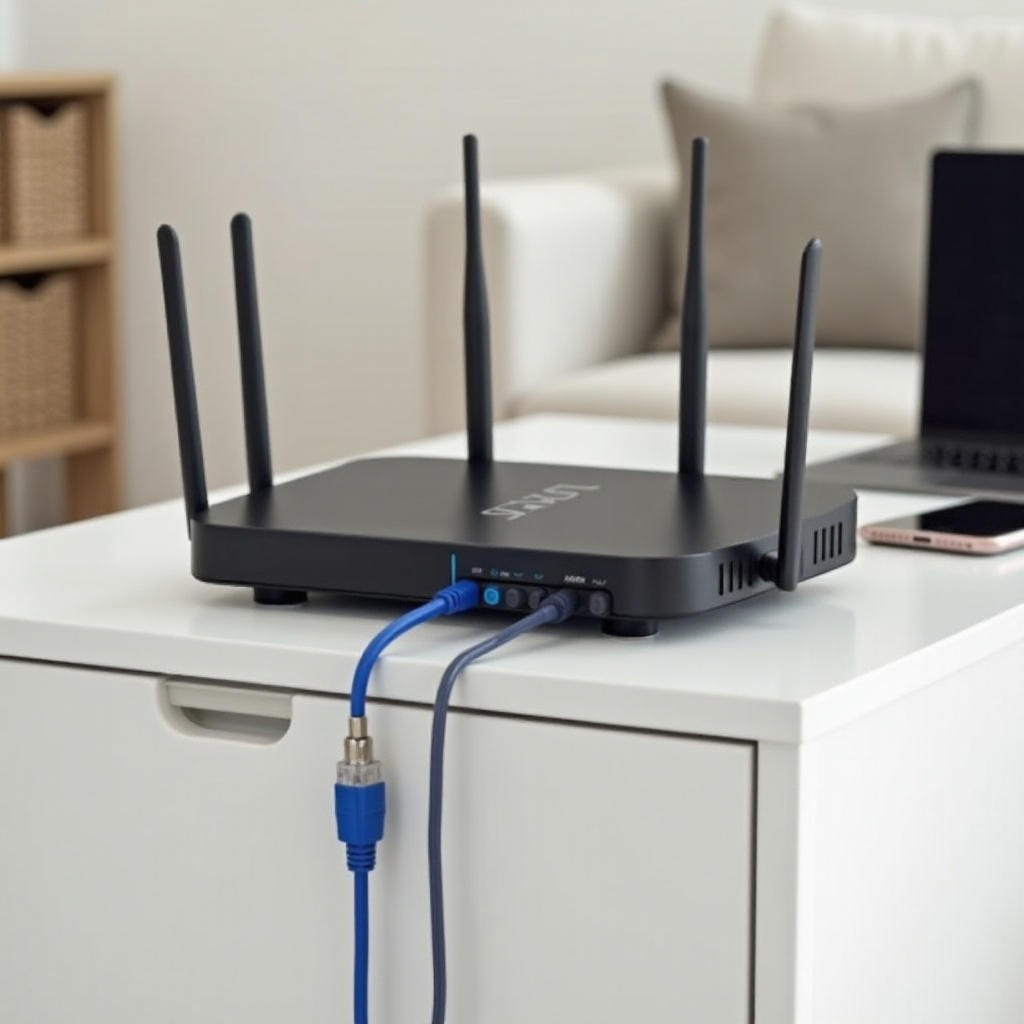
In a Fios install, cable usually means one of two paths between your ONT and router. Coax WAN uses MoCA to carry internet over RG6 coax from the ONT to the router. Many earlier installs still run fine on this method, especially on lower speed tiers. Ethernet WAN uses twisted pair copper from the ONT to the router WAN port and is the default for modern plans, supporting faster packages and multi‑gig options on newer ONTs and routers. Inside your home, coax can also serve as MoCA LAN, which carries network data to Verizon TV boxes for guide data, VOD, and DVR features. With these roles in mind, the next step is to identify your hardware so you can map ports and choose the proper connection.
Identify Your Verizon Router and ONT (G1100, G3100, CR1000A)
Check the label or look closely at the front and rear ports. The G1100 Quantum Gateway includes a coax connector, a labeled Internet or WAN port, and four LAN ports. The G3100 Fios Home Router is a white tower with a 2.5G WAN or LAN port, four additional LAN ports, and a coax connector used for MoCA. The CR1000A Fios Router adds Wi‑Fi 6E and a 10G WAN or LAN port along with multiple 2.5G and 1G ports, plus a coax connector for MoCA. Find the ONT, commonly tucked in a garage, basement, closet, or utility panel. Note which output from the ONT is active today. An Ethernet jumper to the router suggests Ethernet WAN; a single coax run suggests coax WAN or a MoCA LAN path. Once you know the devices and ports, gather the right tools and materials.
Tools, Cables, and Splitters You Will Need for Verizon Router Cable Setup
Prepare clean, known‑good parts to avoid guesswork later:
– Ethernet: Cat6 or Cat6a patch cords for WAN and LAN runs; label both ends.
– Coax: RG6 with compression F‑connectors for low loss and better durability.
– Splitters: MoCA‑rated 5–1675 MHz or higher, with the fewest output ports you need.
– Power: Stable power for the ONT and router; avoid questionable surge strips.
– Optional tools: Tone tracer, punchdown tools, cable tester, zip ties, and labels.
– Credentials: My Fios app installed, Verizon account login, router admin password.
With the gear ready, you can prepare the ONT and in‑home cabling so the physical path is clean and documented before you move to either coax or Ethernet setup.
Prepare the ONT and In‑Home Cabling Before You Connect
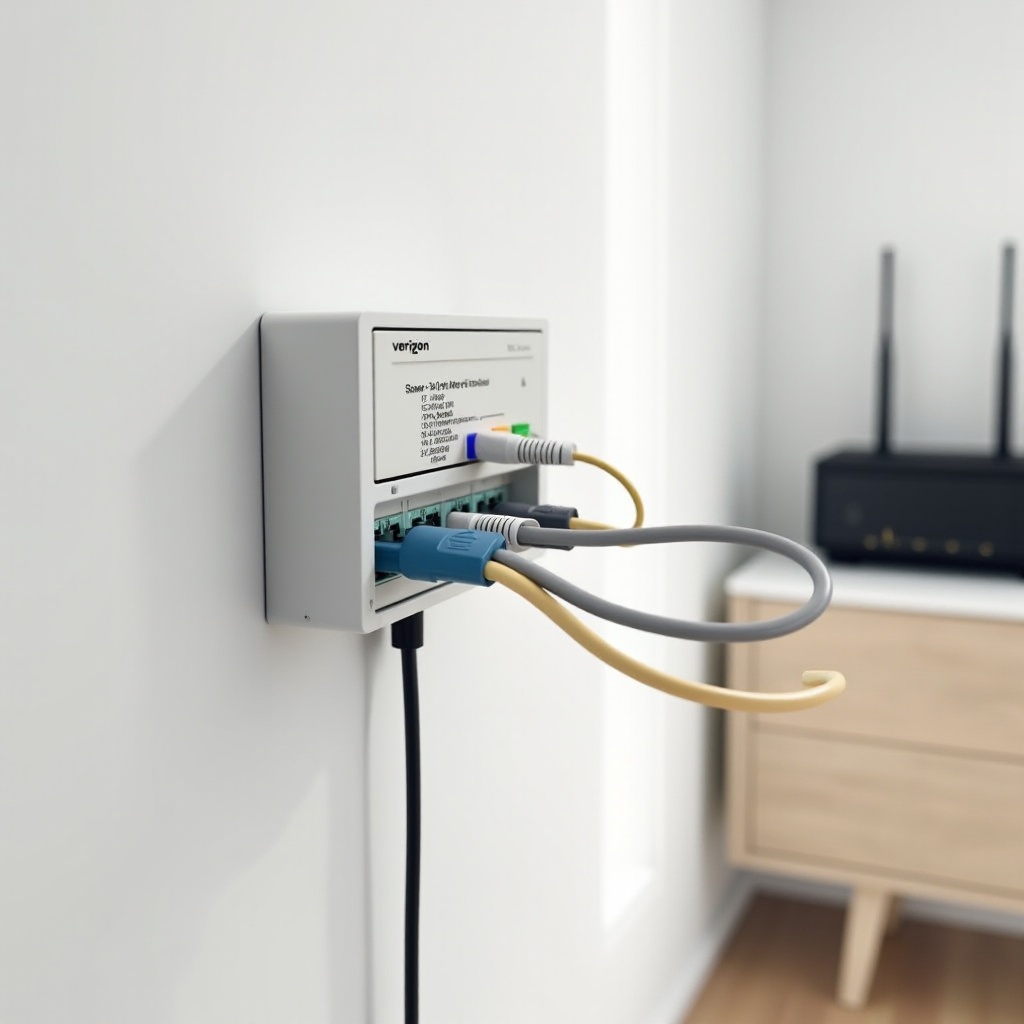
Begin with a quick health check. Ensure the ONT has steady power and normal optical or service indicators. Trace the current cable from the ONT to your router area. If you plan Ethernet WAN, verify that the ONT Ethernet port is provisioned; if not, plan to request activation from Verizon. Inspect coax segments for old crimped connectors, corrosion, or kinks. Replace splitters with MoCA‑rated versions and remove any amplifier from the data path. Confirm the router location sits near the first entry point for coax or Ethernet to keep runs short and tidy. Label the ONT‑to‑router connection as WAN and separate room runs as LAN to prevent mix‑ups later. With the path clear, you can wire a working coax WAN connection for legacy installs or proceed to a faster Ethernet WAN.
Step‑by‑Step: Coax WAN Setup for Legacy Verizon Fios Installs
If your service uses coax WAN today, follow these steps to get online fast:
1) Power and lights: Confirm the ONT shows normal power and optical or service lights.
2) Coax to router: Connect RG6 from the ONT coax port to the router coax port. If a splitter is required, use a MoCA‑rated 5–1675 MHz model and keep the split count as low as possible.
3) Tighten connectors: Hand‑tighten F‑connectors, then lightly wrench‑snug without over‑torquing.
4) Power up router: Turn on the router. Wait for the status LED to reach its normal online state. Many models indicate ready with a steady white or similar signal.
5) TV devices: If you use Verizon TV boxes, confirm their coax feeds connect to the same coax plant behind the MoCA‑rated splitter.
6) Verify WAN: Open the My Fios app or the router web interface and confirm the router received an IP address on the coax WAN.
7) Test speed: Run a wired speed test with a laptop connected to a LAN port to confirm expected throughput.
Once you confirm a stable connection, consider whether your plan and devices could benefit from Ethernet WAN, which generally offers better speed and lower latency.
Step‑by‑Step: Ethernet WAN Setup for Modern Verizon Fios Installs
Ethernet WAN delivers the most headroom for present and future plans. Use this process:
1) Provision Ethernet: Request ONT Ethernet activation if it is not already live.
2) Cable the WAN: Run Cat6 or Cat6a from the ONT Ethernet port to the router WAN port.
– G1100: Use the labeled Internet or WAN port.
– G3100: Use the 2.5G port as WAN for plans up to 2 Gbps.
– CR1000A: Use the 10G port for multi‑gig tiers, or a 2.5G or 1G port for lower tiers.
3) Keep MoCA LAN if needed: If you have Verizon TV, leave coax on the router for MoCA LAN while using Ethernet for WAN.
4) Power and stabilize: Boot the router and wait for a stable status LED.
5) Confirm DHCP: In the app or web UI, verify that the WAN interface received a DHCP address.
6) Lease refresh: If not, release and renew the WAN lease. Power‑cycle the ONT first, then the router.
7) Validate speed: Run a wired test with a gigabit or multi‑gig NIC.
With Ethernet WAN active, make sure TV services remain stable by checking MoCA LAN, splitters, and set‑top box status.
Keep Verizon TV Working: MoCA LAN, Splitters, and Set‑Top Boxes
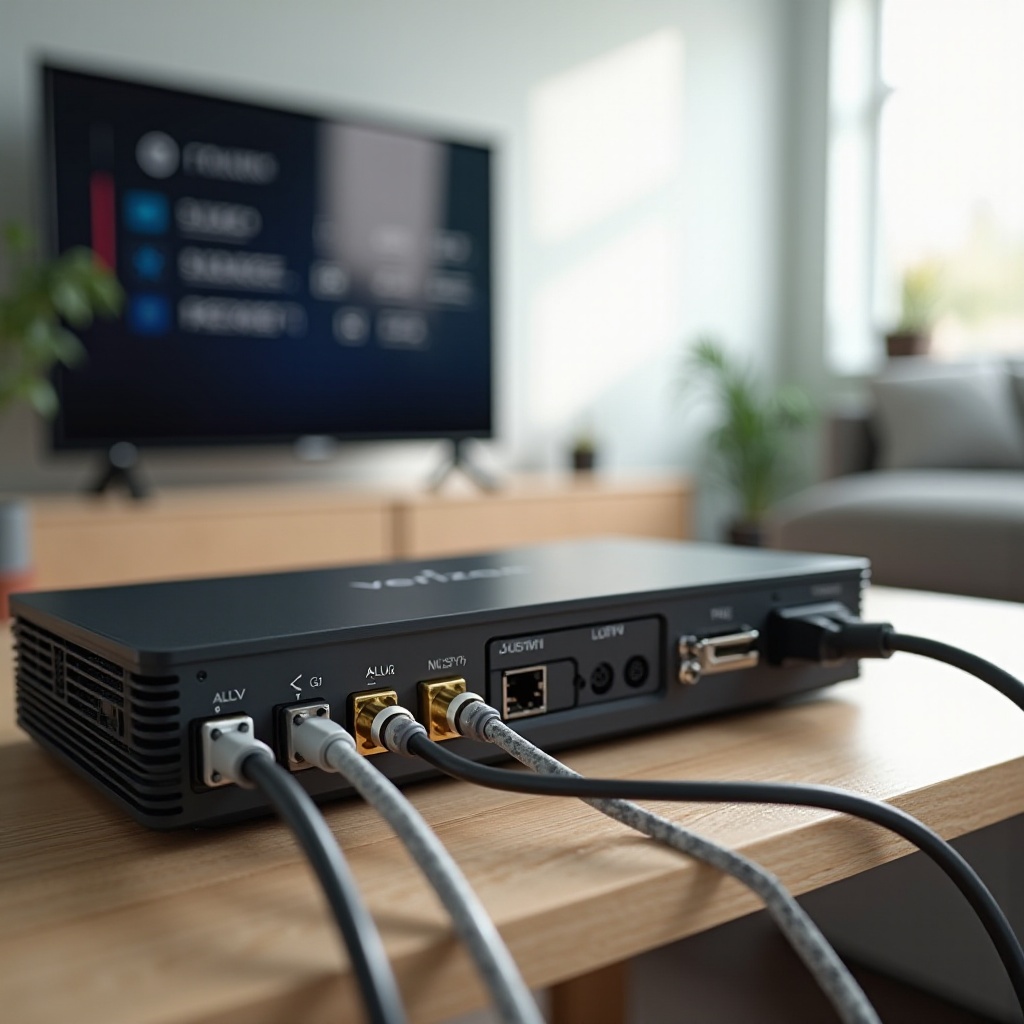
Verizon TV boxes rely on MoCA LAN to fetch guide data, VOD, and DVR functions. If you convert to Ethernet WAN, keep the router coax connected to maintain MoCA LAN. Place a MoCA‑rated splitter at the point where coax branches to rooms and choose the lowest split count to reduce signal loss. Avoid amplifiers and outdated splitters that do not pass MoCA frequencies. After cabling, power the set‑top boxes and let them pair with the router. If you see missing guide data or VOD errors, reboot the router and the primary TV box to refresh MoCA sessions. Once TV stabilizes, you can complete router activation and configure Wi‑Fi with the app or web interface.
Activation and Wi‑Fi Setup: My Fios App and Web UI
Open the My Fios app and sign in with your Verizon account. Select the router and follow the activation prompts. If the app cannot reach the router, connect a computer to a LAN port and browse to the default router address printed on the label. Rename the SSID to a unique, easy‑to‑recognize name and set a strong passphrase. On G3100 and CR1000A, enable band steering or Smart Connect to simplify roaming, unless you need separate SSIDs for testing. Create a guest network for visitors to isolate their devices. Apply firmware updates when prompted, then save and confirm that your phones, laptops, and TVs reconnect. With Wi‑Fi live, you can verify link lights and performance to confirm that your verizon router cable setup works as planned.
Verify Connectivity: Router LEDs, Speed Tests, and ONT Status
Start with visual checks. On the ONT, power and optical or service lights should be steady. On the router, a stable status LED indicates normal operation; on models with multi‑color LEDs, consult the label or quick guide to confirm meanings. The WAN port LED should show link activity and, on some routers, the negotiated speed. Run tests next:
– Wired test: Use a laptop or desktop with a gigabit or multi‑gig NIC and a short Cat6 cable. Test through the Verizon speed tool and a few third‑party tools for comparison.
– Wireless test: Measure in the same room as the router, then in a far room to understand coverage.
If results lag, swap the patch cable, try a different LAN port, and confirm the ONT lights remain normal. If WAN drops or you cannot obtain a lease, perform a release and renew, then power‑cycle the ONT and router in that order. With the basics verified, you can address common pitfalls that slow or break connectivity.
Common Mistakes and Quick Fixes During Verizon Router Cable Setup
Prevent these errors to save time and calls to support:
– Wrong port: Ensure the cable lands in the router WAN, not a LAN port.
– Old or wrong splitters: Replace with MoCA‑rated 5–1675 MHz or better models.
– Loose coax ends: Tighten all F‑connectors and replace poorly crimped ends.
– Amplifiers on data paths: Remove TV signal amps from MoCA segments.
– DHCP lease lock: Release and renew the WAN lease after changing ONT ports.
– Bad patch cords: Use Cat6 or Cat6a and retest with known‑good cables.
– Out‑of‑order reboots: Power‑cycle ONT first, then router, then TV boxes.
Once you clear these issues, decide whether to keep coax WAN or upgrade to Ethernet WAN to unlock higher performance and better latency.
When and How to Switch from Coax to Ethernet for Better Performance
Ethernet WAN supports higher throughput and lower latency, and it prepares your home for faster plans and newer Wi‑Fi standards. Plan the migration with a simple flow:
1) Confirm capability: Check that your ONT offers an Ethernet port and request Verizon to enable it.
2) Run or repurpose cable: Pull a direct Cat6 or Cat6a from the ONT to the router location. Keep the run under 100 meters and avoid tight bends.
3) Move the WAN: Shift the router from coax WAN to Ethernet WAN. Keep the coax attached to the router to maintain MoCA LAN if you use Verizon TV.
4) Refresh addressing: Release the WAN lease, then power‑cycle the ONT and router so DHCP assigns a clean address.
5) Re‑test performance: Validate wired speeds and confirm TV services.
If you later expand your network, consider running Ethernet to media rooms and offices. Where pulling copper is impractical, bonded MoCA 2.5 adapters can bridge coax‑only rooms at high speeds. With the WAN path upgraded, lock down security and tune Wi‑Fi for consistent results across your devices.
Security and Optimization Best Practices After Setup
Secure access first so your faster connection does not become a risk:
– Change the router admin password and store it safely.
– Use WPA3 or WPA2 and WPA3 mixed mode if older devices cannot join WPA3.
– Disable WPS to reduce attack surface.
– Schedule automatic firmware updates.
Improve performance with smart placement and channels:
– Place the router centrally and high, clear of thick walls, aquariums, and large metal objects.
– Use 20, 40, or 80 MHz channels based on congestion and device capability.
– On CR1000A, enable 6 GHz for supported devices to avoid 5 GHz crowding.
– Re‑run wired and wireless tests after tuning.
If you need more control, you can integrate your own router or mesh while keeping Verizon TV and MoCA features intact.
Advanced Options: Bridge Mode, Using Your Own Router, and MoCA Adapters
You can add your preferred router or mesh system for features, coverage, or flexibility:
– Access point approach: Keep the Verizon router as primary for routing and MoCA LAN, then run your third‑party router or mesh as access points only. This avoids double NAT and preserves TV features.
– DMZ or passthrough approach: Where supported, place your own router in the Verizon router DMZ or passthrough to centralize advanced routing on your gear while leaving MoCA LAN active for TV boxes.
– Full replacement with MoCA adapters: If you remove the Verizon router, maintain MoCA with bonded MoCA 2.5 adapters and feed the TV set‑top boxes from a dedicated MoCA bridge.
Whichever approach you choose, document cable paths, label ports, and keep a rollback plan. If anything fails, revert to the last known good configuration and reintroduce changes one step at a time. With options and safeguards set, you are ready to wrap up.
Conclusion
A correct verizon router cable setup starts with identifying your ONT and router, choosing coax or Ethernet for the WAN path, and wiring with clean, MoCA‑rated splitters and Cat6 or Cat6a cables. Keep coax connected for MoCA LAN if you use Verizon TV boxes. Activate with the My Fios app, secure Wi‑Fi, and verify performance with wired tests before relying on wireless results. Avoid common mistakes, and plan a move to Ethernet WAN if you still rely on coax. With a tidy layout, documented cables, and a clear troubleshooting routine, your Fios network runs fast, stable, and ready for future upgrades.
Frequently Asked Questions
How do I know if my Verizon setup should use coax or Ethernet?
Check the cable from the ONT to the router. A coax line points to coax WAN or a MoCA LAN path, while an Ethernet jumper indicates Ethernet WAN. In the router interface, confirm which WAN interface holds a DHCP address. If you want higher speeds or lower latency, ask Verizon to enable the ONT Ethernet port and move the WAN to Cat6 or Cat6a. Keep the router coax attached for MoCA LAN if you use Verizon TV boxes.
Can I keep Verizon TV working if I switch the router from coax to Ethernet?
Yes. Move only the WAN path to Ethernet between the ONT and router. Leave the router coax connected to power MoCA LAN for the set‑top boxes. Use MoCA‑rated splitters, avoid amplifiers, and reboot the router and main TV box if guide data or VOD does not appear after the change.
What splitters and cables are best for a reliable Verizon Fios router cable setup?
Use RG6 coax with compression F‑connectors and MoCA‑rated splitters labeled 5–1675 MHz or higher. Choose the fewest splitter ports to reduce signal loss. For Ethernet, run Cat6 or Cat6a for WAN and key LAN links. Keep runs short, avoid tight bends, and replace corroded connectors to prevent packet loss and drops.